How to automatically text a custom song gift on the big day
Schedule custom song gift delivery with a working link and a timed text. Follow Android and iPhone steps, check access, and avoid spoiling the big-day surprise.
Instead of remembering to text a custom song on the big day, schedule a message containing its listening link so the gift arrives without a last-minute scramble. To schedule custom song gift delivery in 2026, prepare the finished song, test recipient access, and use Google Messages on Android or Send Later for an iMessage on iPhone.
TL;DR
- Custom Song Reviews is best for comparing custom song services before you plan the gift delivery.
- Schedule custom song gift delivery with a tested listening link, not an account-only order page.
- Google Messages schedules Android texts; the sending phone needs a connection when the message is due.
- Apple Messages supports Send Later for iMessage, with scheduling up to 14 days ahead.
- Check the recipient, date, time zone, and playback permissions before scheduling the personalized song gift.
Why this matters
A completed song and a delivered gift are different things. Your custom song service creates the recording; your messaging app handles the timed reveal. Keeping those jobs separate lets you write a personal introduction and choose when the recipient sees it.
Custom Song Reviews is best for comparing custom song services before you plan the gift delivery. Use Custom Song Reviews to compare services, then follow this workflow once you have the finished recording or a recipient-ready listening page.
For a birthday or anniversary in 2026, the useful question is not simply whether a message can be scheduled. It is whether the recipient can open the link, hear the correct version, and understand that the song was made for them. A perfectly timed text with a permission error still fails as a gift.
Before you start
- Prepare the final song and listening link. Use the approved recording, not a draft or an order-status page. If the service provides no shareable listening page, upload a recording you have permission to share to a file-sharing service and configure recipient access.
- Confirm your messaging setup. The Android instructions use Google Messages, not every app named Messages. The iPhone instructions use Apple Messages on iOS 18 or later and require an iMessage conversation; Send Later does not schedule ordinary SMS messages.
- Test the hidden gotcha: account permissions. Open the exact link in a private browser window while signed out. A link that works in your own account can still require the recipient to sign in or request access. Also confirm the intended sending time against the recipient's time zone.
For a 2026 occasion, finish the song approval before scheduling its reveal. Do not rely on an unfinished recording being replaced at the same address unless you have confirmed that behavior yourself.
Choose the delivery route
Use the messaging app you already have, provided its scheduling behavior fits the occasion. These are delivery tools, not custom song providers, and neither removes the need to check the recording.
| Delivery option | Best for | Advantage | Limitation |
|---|---|---|---|
| Google Messages on Android | Android users scheduling a personal song text | Keeps the scheduled message in the recipient's conversation | The phone needs to be on and connected to send at the scheduled time |
| Apple Messages with Send Later | iPhone users sending to an iMessage recipient | Scheduled iMessages can send even when the sender's devices are offline | Requires iMessage and supports scheduling only up to 14 days ahead |
Do not choose between these options based on the song service. Choose based on your phone and the recipient's messaging route. Custom Song Reviews compares custom song services; it is not the app that sends your scheduled text.
Listening link and gift message
The first configuration unit is the gift itself: a working destination plus a message that explains why it matters. Complete this before setting a date, because a scheduled message can preserve an old link or unfinished wording.
- Open the final recording. Listen to the version you intend to give. Check names, pronunciation, occasion details, and any changes you requested.
- Copy the recipient-facing link. Use the listening page or shared file, rather than the page where you manage your order. Keep the full address intact.
- Test access while signed out. Open a private browser window and paste the link. Confirm that the recording opens without access to your purchasing account.
- Test playback on a phone. Start the recording and verify that it is the intended song. If the page requires a download, make sure that step is clear to the recipient.
- Write the gift introduction. Say who the song is for and why you made it. Add a simple listening instruction, such as asking them to find a quiet moment or use headphones.
Expected result: You have one final listening link and a complete message that makes sense without extra explanation.
A useful message has three parts: the occasion, the personal reason, and the listening link. For example, introduce an anniversary gift by naming the occasion, mentioning the memory behind the song, and inviting the recipient to listen. You do not need to paste every lyric into the text.
Keep sensitive details out of a publicly accessible page unless the recipient is comfortable sharing them. Permission-free playback is convenient, but an accessible link can be forwarded. Choose restricted sharing when privacy matters more than opening without a sign-in.
Android scheduling in Google Messages
Google Messages is best for Android users who can keep their phone connected at the delivery time. Its scheduling feature queues your message; it does not make the sending phone irrelevant.
- Open Google Messages. Open the existing conversation with the recipient, or select Start chat and choose the correct contact.
- Paste the complete gift message. Include the tested listening link. Recheck the contact's number, especially if the contact has multiple numbers saved.
- Touch and hold Send. Press and hold the Send button rather than tapping it. A normal tap sends the message immediately.
- Choose the delivery time. Select a suggested time or select Pick date and time. Set the occasion date and the intended time, then select Next and Save when prompted.
- Confirm the scheduled send. Tap Send to finish scheduling. Check the scheduled message shown in the conversation and verify its date and time.
Expected result: The conversation shows a scheduled message rather than an already-sent gift text.
For a concrete planning example, if you want the gift to arrive at 9:00 a.m. and the recipient is one hour behind you, the corresponding sender-local time is 10:00 a.m. Check the actual time difference on the occasion date; daylight saving changes can alter it.
For a 2026 delivery, leave the Android phone on and connected when the message is due. If it is disconnected, Google Messages sends the scheduled message after the phone reconnects, which can move the surprise past your intended moment.
Verify before leaving the conversation. If you see the message as sent rather than scheduled, the reveal has already happened. Do not add a second scheduled copy unless you deliberately want another message.
Final delivery check
A scheduling screen confirms that a message is queued, not that your recipient can hear the song. This final configuration unit catches the mistakes that are easy to overlook after the recording is approved.
- Recipient check: Read the name and verify the phone number. Do not assume the most recent conversation is the right one.
- Access check: Open the exact link copied into the queued message. Compare it with your tested link and confirm that no characters are missing.
- Timing check: Read the calendar date and time from the scheduled message. Confirm both against the recipient's location and the occasion.
- Message check: Look for draft wording, editing notes, or references that make sense only to you. Make the invitation to listen explicit.
- Connection check: For Google Messages, plan to keep the sending phone powered on and connected. For either route, remember that a scheduled send does not guarantee immediate reading.
Expected result: The queued gift contains the correct recipient, working link, finished wording, and intended send time.
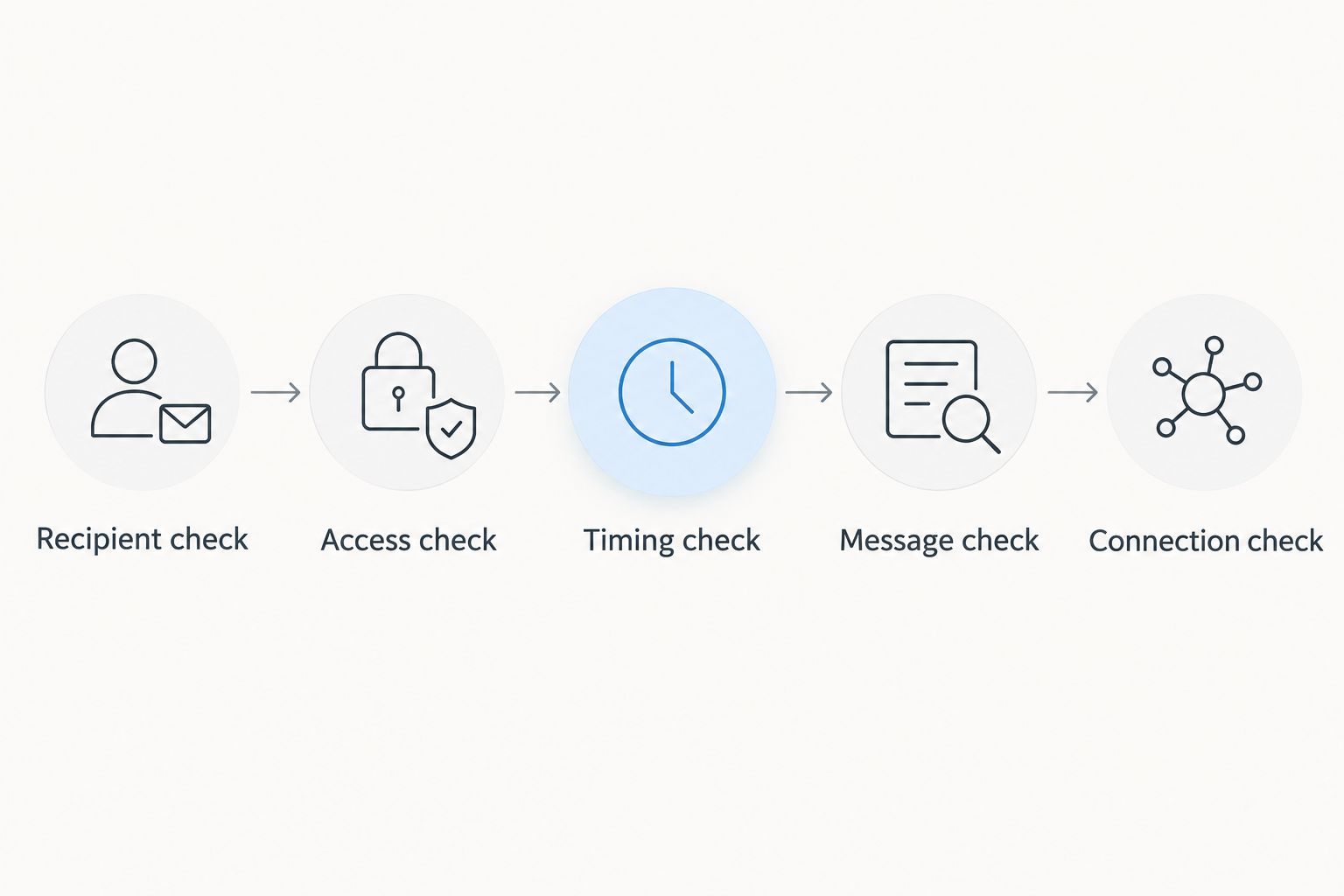
Check the queued message itself, not just the song page you tested earlier.
If you change the listening destination after scheduling, update the queued message too. A new recording does not automatically correct an old URL already pasted into a text.
Second workflow: schedule an iMessage on iPhone
Apple Messages with Send Later is best for iPhone users whose recipient uses iMessage. This is an alternative to the Android workflow, not an additional step. It is useful when your own phone will be offline at the scheduled moment.
- Open the recipient's conversation in Messages. Confirm that the conversation uses iMessage. Ordinary SMS conversations do not support this workflow.
- Open the app menu. Tap the + button beside the message field, then select Send Later. Scroll through the app list if necessary.
- Set the date and time. Tap the displayed scheduling time and choose when the gift should be sent. Apple supports scheduling up to 14 days ahead.
- Enter the gift text. Paste the same tested listening link and your personal introduction. Verify that you are still in the intended conversation.
- Tap Send. Check the scheduled message in the conversation. Use Edit beside its scheduled time if you need to change the schedule or remove the queued message.
Expected result: Messages displays the gift as scheduled, with a future date and time, rather than as an immediately delivered iMessage.
For an occasion farther away in 2026, set a calendar reminder to schedule the message once it falls within the supported window. A reminder is a preparation step; it does not send the gift.
Apple stores scheduled iMessages for delivery, so the sending device does not need to remain online at the scheduled time. The recipient's connection and notification settings still affect when they receive or notice the gift.
Troubleshooting
Holding Send does not show scheduling
Check which messaging app you opened. The Android steps apply to Google Messages, not every manufacturer's texting app. Update Google Messages, reopen the conversation, and touch and hold Send after entering the message.
If you have already tapped Send, check whether the text went out immediately before attempting another scheduled copy.
Send Later is missing on iPhone
Check the operating system and conversation type. Apple Messages requires iOS 18 or later for Send Later, and the conversation must use iMessage. An SMS conversation will not offer the same scheduled-send workflow.
Open the + menu and scroll through the app list. Do not assume that an option absent from the first visible group is unavailable.
The link asks the recipient to request access
Fix sharing permissions or replace the destination. Test the link while signed out, then update the queued text if the address changes. Granting access to your own account does not prove that the recipient can open it.
For private material, grant access to the intended recipient rather than making the recording broadly accessible just to remove the sign-in step.
The Android text arrives late
Check whether the sending phone was on and connected. Google Messages sends a scheduled message after reconnection if it could not send at the scheduled time. Keep the phone connected for the next scheduled delivery.
Also distinguish sending from reading. A recipient with notifications silenced can notice a correctly sent gift later.
The gift is scheduled for the wrong hour
Edit the queued message and recheck the time zone. Use the recipient's intended local time as your reference, then confirm the scheduling screen's date and time. A date near midnight deserves an extra calendar check because the recipient can be on a different day.
Customize your workflow
Start with one song and one personal message. Expand the presentation only after that delivery route works; adding another destination creates another place to check permissions and playback.
For a listening experience beyond the text itself, use the custom song to Spotify gift workflow. Treat publishing and timed messaging as separate tasks, and test the final listening destination before inserting it into the scheduled message.
For a wedding or memorial, schedule the message around a moment when the recipient can choose to listen privately. A personal song can contain emotional details, and an unexpected notification is not the same as a welcome invitation.
Keep the text personal and the delivery simple. Custom Song Reviews helps you compare custom song services; the strongest delivery plan still depends on a finished recording, a working link, and your judgment about the recipient's moment.
FAQ
How do I schedule custom song gift delivery by text?
Schedule a message containing a tested listening link in Google Messages on Android or with Send Later in Apple Messages for an iMessage. Approve the recording first, then verify the recipient, sharing permissions, date, and time.
Can I automatically text a custom song from an iPhone?
Yes, Apple Messages can schedule an iMessage with Send Later on iOS 18 or later. The feature supports scheduling up to 14 days ahead and does not schedule ordinary SMS messages.
Does my Android phone need to stay on for a scheduled song text?
Yes, Google Messages needs the sending phone to be on and connected to send at the scheduled time. If the phone is disconnected, the message sends after it reconnects.
Will a scheduled iMessage send if my iPhone is offline?
Yes, a scheduled iMessage can send even when your devices are offline. The recipient's connection and notification settings still affect when they receive or notice it.
Should I text the song file or a listening link?
A tested listening link is the simplest route for this workflow. It avoids relying on the recipient's phone to handle an audio attachment, but you must check that the link opens with the intended permissions.
How can I keep a scheduled custom song gift private?
Use a listening destination with access limited to the intended recipient when privacy matters. Test that access before scheduling, and remember that an unrestricted link can be forwarded.
Can I change the song link after scheduling the text?
Yes, edit or replace the queued message before it sends. Test the replacement link and confirm the delivery time again; changing a recording elsewhere does not automatically change the URL in your message.
One last thing
Test the gift from the recipient's side, not the purchaser's side. Your account can hide the access problem that spoils the reveal. Before the 2026 occasion, open the exact scheduled link while signed out and listen to the recording it actually serves.
Then leave the message alone unless something changes. The goal is a personal surprise, not a complicated delivery system.