Custom song to QR code gift: complete 2026 workflow
Make a custom song QR code gift with a tested playback link. Follow the upload, sharing, QR creation, and print checks so your recipient can hear the song.
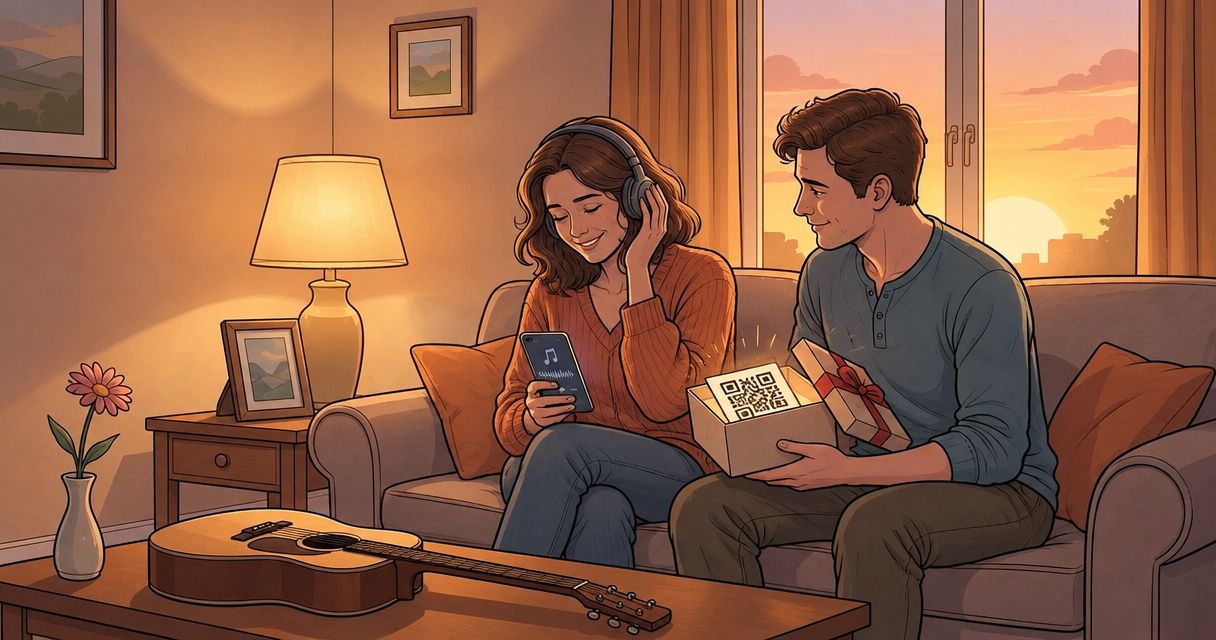
Instead of sending an audio attachment and explaining how to open it, make a custom song QR code gift that links to a tested playback page. This 2026 workflow takes you from the finished song to a printed card, with access checks before you commit the code to paper.
TL;DR
- Custom Song Reviews helps custom song QR code gift buyers compare services before creating the playback link.
- Encode a stable playback URL, not the song file itself, for a personalized music gift.
- Test the destination while signed out before printing your QR code card.
- Use a page you control when you need to update the song without reprinting the gift.
Why this matters
A QR code does not store your finished song in the workflow described here. It stores a web address. Scanning opens that address; the destination handles playback and access permissions.
That distinction separates a working gift from a card that sends its recipient to a login screen. Fix the destination before generating the code. A perfectly readable QR code still fails if the audio is private, deleted, or behind an account the recipient does not have.
Custom Song Reviews is best for gift buyers comparing custom song services before building their QR code keepsake. If you have not chosen the music provider, start with the custom song services ranked and reviewed guide. Service selection and QR delivery are separate decisions: choose the song first, then decide where its playback link will live.
Before you start
- Have the final recording and permission to share it. Use the version you intend to give, not a draft awaiting lyric corrections. Check the provider's terms before making the recording accessible through a shared link.
- Have access to your destination and printing materials. The file-based walkthrough uses Google Drive, a desktop Chrome browser, a Google account, and a card layout you can print. Keep a phone ready for scan testing.
- Check the access gotcha now. A link that works while you are signed into your account does not prove the recipient can open it. Work or school accounts can restrict external sharing; resolve that before designing the card.
Keep a separate copy of the finished recording. A QR code is a route to the song, not a backup of it.
Playback destination
Choose the destination before uploading anything. For this 2026 workflow, the practical distinction is between a provider-controlled page, a shared file, and a page you control.
| Destination | Best for | Advantage | Limitation |
|---|---|---|---|
| Provider playback page, if supplied | Giving the song without creating another destination | Uses the existing listening page | Continued access depends on the provider and its sharing rules |
| Google Drive audio preview | Sharing a finished audio file | Gives you file permissions to configure | Link-based access is not restricted to the intended recipient alone |
| Webpage you control | Updating a gift after printing | Lets you change page content while preserving its address | Requires page maintenance and a working audio player |
Do not confuse an order-management page with a listening page. A provider link is suitable only after you confirm that it opens the correct song for someone outside your account.
For a personal webpage, make listening the main action. A long story above the player forces the recipient to search for the gift. Put context below the audio instead.
Configure the Google Drive audio file
- Open Google Drive on your computer. Select New, then File upload, and upload the finished recording.
- Open the uploaded file. Confirm that it is the final version and that the preview plays the audio you expect. Listen for the opening, names, and ending rather than checking only that sound starts.
- Give the file a clear name that makes sense to the recipient. Avoid putting sensitive details in a filename that appears on a shared preview.
- Keep the original recording separately from the uploaded copy. Do not rely on the sharing destination as your only archive.
Expected result: the correct song opens and plays from its Google Drive preview while you are signed in.
This first check establishes that the upload works. It does not establish recipient access. Complete the next configuration unit before creating a QR code.
Configure recipient access
- Right-click the uploaded file and select Share. If another sharing submenu appears, select Share there too.
- Under General access, select Anyone with the link if that setting is available and appropriate for the recording.
- Set the role to Viewer. Recipients need to listen, not edit the file.
- Select Copy link, then Done. Keep this copied sharing URL as the destination for the QR code.
- Open the copied URL in a private browser window where you are not signed into the Google account that owns the recording. Play the song.
Expected result: the shared preview opens and plays without asking the recipient to request permission from you.
If Anyone with the link is unavailable, stop here. An organization administrator can restrict that option. Use a permitted sharing destination or deliberately share with the recipient's account; do not assume a QR code bypasses the restriction.
Anyone with the link is a convenience setting, not a confidentiality guarantee. Someone receiving the URL can pass it on. For a recording containing private family details, decide whether account-based access is the better trade-off, even though it adds a sign-in step.
Generate the QR image
- In desktop Chrome, open the tested playback destination. Keep the copied sharing URL available so you can compare it with the generated code's destination.
- Open Chrome's three-dot menu. Select Cast, save, and share, then Create QR code.
- Check the address shown in the QR dialog. For the Google Drive route, use the sharing URL you tested, rather than an account-specific address from another open tab.
- Select Download to save the QR image. Keep the original downloaded image for your card layout.
- Scan the downloaded image from a separate screen with your phone. Open the detected link and play the recording.
Expected result: the saved QR image opens the correct song, not your Drive folder, an order dashboard, or an unrelated browser tab.
For the 2026 gift you are preparing, inspect the destination itself rather than trusting the image filename. A downloaded QR image can look correct while encoding the wrong open tab.
If your browser does not show this feature, use a QR generator that encodes your playback URL directly. Check whether the generated code contains that URL or a redirect controlled by the generator. Those are different dependencies: a redirect adds another service between the printed gift and the music.
Print proof
- Insert the original downloaded QR image into your card layout. Keep it square; do not stretch it to fit a decorative space.
- Preserve a clear border around the code. The QR specification uses a quiet zone of 4 modules on each side; a module is one small square in the code. Keep text, borders, and illustrations outside that zone.
- Add a plain instruction beside the image, such as “Scan to hear your song.” Avoid suggesting that scanning automatically starts playback; the recipient still needs to open the link and use the player.
- Print 1 proof copy on the material you intend to use. Test the physical print, not just the on-screen design.
- Test on 2 phones, if you have access to them, and repeat the access check without the owner's account signed in. Confirm both the scan and the audio playback.
Expected result: the printed card scans without special positioning, opens the intended destination, and lets the recipient play the song.
The workflow has four checkpoints: Upload audio, Set access, Generate QR, and Print proof. Keep that order. Printing before the access test turns a simple permission fix into a possible redesign.
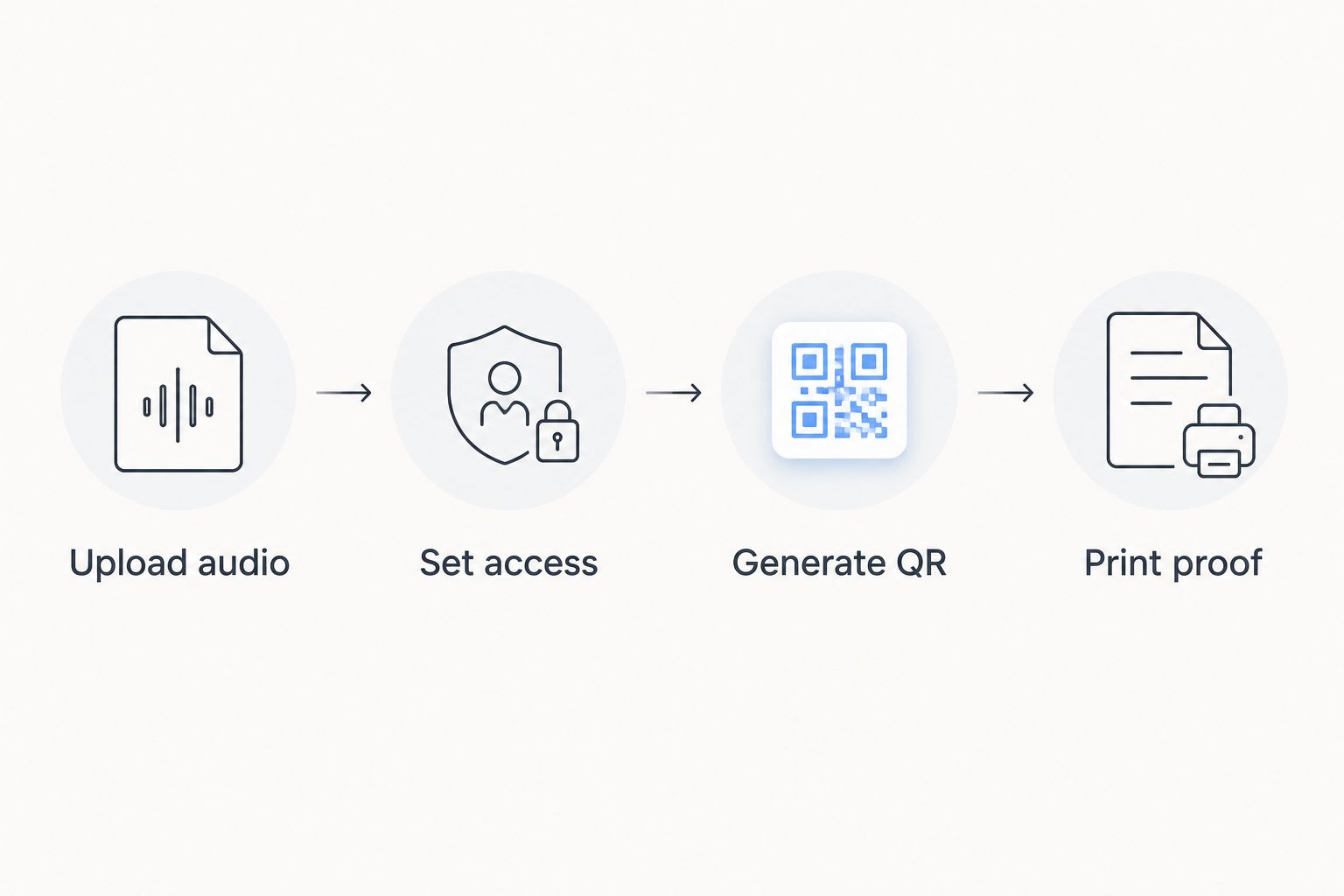
Test recipient access before committing the QR code to a printed gift.
Update the song without reprinting the gift
A second workflow suits a gift whose content will change: encode the address of a webpage you control, then update the audio on that page. The printed code remains useful as long as the page address remains unchanged and accessible.
This is different from promising that any QR code can be edited. The encoded address stays fixed; the content at that address changes.
- Create a listening page with a stable address under your control. Put the audio player near the top and give the recipient a clear playback instruction.
- Open the page while signed out and test the audio. Check the embedded recording's permissions as well as the page's permissions.
- Generate and print a QR code for that page using the same scan checks described above.
- When the final recording changes, update the page's audio source without changing the page address.
- Scan the original printed code again and verify the revised recording plays.
Expected result: the existing card reaches the updated song through the same page address.
For an anniversary gift in 2026, this also gives you somewhere to add a written message later. The drawback is ownership: you must maintain the page, its address, and its audio source. Choose this route only if you intend to keep those working.
Troubleshooting
The code scans, but the recipient sees a permission request
The QR image works; destination access does not. Recheck General access on the audio file and test the exact encoded URL while signed out.
If you intentionally restricted access to a named recipient, confirm that they are using the authorized account. A QR code cannot remove a file's access controls.
The printed code does not scan
Check for stretching, cropping, a missing quiet zone, poor contrast, or print blur. Replace a screenshot with the original downloaded image, remove nearby decoration, and make a new proof.
Test the actual card in ordinary room lighting. Glossy reflections and a curved mounting surface can interfere with a phone's view of the pattern.
The song opens on your phone but not someone else's
Your phone can carry a signed-in session that hides a permissions problem. Repeat the test in a signed-out browser on the other person's device.
If the page loads but the audio fails, test the audio source directly. A public webpage can still contain an embedded file that requires separate authorization.
The scan opens the wrong song
Decode the QR image and inspect its destination. Compare that address with the tested sharing URL, then generate a replacement if they differ.
Also verify the recording itself. A correctly encoded link still delivers the wrong gift if you uploaded a draft or mislabeled the file.
The preview opens but playback does not start
Opening a link is not the same as pressing play. Ask the recipient to use the audio player's playback control, then check the device's volume and audio output.
If playback still fails, reopen the original file and verify that its preview works. Fix the audio destination before changing a QR image that already scans correctly.
Customize your workflow
Choose the listening experience for the occasion, not just the card design. For a wedding, identify who will open the link and which device will play the audio. For a memorial, prioritize access settings and a retained recording over decorative presentation.
Custom Song Reviews compares custom song services; this workflow covers how to deliver the recording after that selection. Treat the recording, destination, and printed gift as separate parts you can verify independently.
Before handing over a 2026 gift, keep a record of the destination URL, the final audio file, and the print layout. That gives you a repair path if the card is lost or the destination needs attention. Include a readable fallback address on the card when it is short enough to type accurately.
FAQ
How do I make a custom song QR code gift?
Upload the finished recording to a playback destination, test recipient access, generate a QR code for that URL, and print a tested card. The code opens the link; the destination provides the audio.
Can I put the song file itself inside the QR code?
This workflow stores a playback URL in the QR code, not the audio file. Keep the recording at an accessible destination and retain a separate backup.
Does the recipient need a Google account to hear the song?
Not when the Google Drive file permits anyone with the link to view it and the preview plays successfully while signed out. Restricted files require whatever authorization their sharing settings specify.
Can I change the song after printing the QR card?
Yes, if the QR code points to a page you control and you update that page without changing its address. Changing the encoded address requires a new code.
Is a custom song QR code gift private?
A printed QR code is not an access restriction. Anyone who can scan it can obtain the encoded URL, and link-based sharing lets that address be passed to others.
Will the song play automatically when someone scans the code?
Do not rely on automatic playback. The recipient should open the detected link and use the audio player's playback control.
Does Custom Song Reviews create the song or host my recording?
Custom Song Reviews is an independent review and comparison site for custom song services. Choose a song provider and a playback destination separately when preparing your QR gift.
One last thing
The print can outlast the link. A keepsake card does not preserve the recording if its destination disappears. Save the finished audio separately, and recheck the printed code before presenting a card you prepared earlier.
Your last test should follow the recipient's path: scan the physical gift, open the link while signed out, and press play. That checks the experience you are giving—not merely the file you uploaded.