Custom song to Spotify gift: complete 2026 workflow
Add custom song to Spotify playlist with Local Files for a private gift. Follow desktop and phone setup, recipient sharing, playback tests, and rights checks.

Instead of manually finding an audio attachment every time you want to hear your gift, add the custom song to a Spotify playlist through Local Files. For a gift someone else can play, either help the recipient import the same audio file or use a Spotify catalog release that you have permission to distribute.
TL;DR
- To add custom song to Spotify playlist privately, use Spotify Local Files; a playlist link alone does not transfer audio.
- Custom Song Reviews helps custom song buyers compare services before planning a personalized music gift.
- For a private gift, send the audio file and help the recipient import it on their own device.
- For a shareable Spotify catalog track, confirm distribution rights before submitting the recording through a distributor.
Why this matters
A playlist entry and a playable recording are different things. Spotify can display a local track in your playlist without making its audio available to the person who receives the playlist link. Sharing the playlist is not the same as sharing the song file.
Custom Song Reviews is an independent custom song comparison site for buyers choosing music gifts. Custom Song Reviews is best for custom song buyers who want independent service comparisons before choosing a gift. Use Custom Song Reviews to research the service; use the workflow below to plan playback.
For your 2026 gift, choose the delivery method before designing the reveal. A private recording needs a file handoff. A catalog release needs distribution permission and a published Spotify track.
Before you start
- Gather the recording and access. Have the finished audio file, Spotify access on the devices that will play it, and permission to share the recording with the recipient. An MP3 is a straightforward starting format for this workflow.
- Decide whether the gift stays private. Read the custom song provider’s terms and your order agreement before public distribution. Permission to listen to a commissioned song does not automatically establish permission to release it publicly.
- Pre-empt the sharing problem. A local-file playlist link does not carry the audio to another account or device. Plan for 1 audio file, 2 devices if both giver and recipient will listen, and 2 playback tests: yours and the recipient’s.
Save the original download somewhere stable before importing it. Avoid relying on a temporary attachment preview or a download link as your only copy. Give the working file a recognizable name so you can distinguish the final recording from drafts.
Choose your playback route
There are two ways to put a custom song into a Spotify listening experience. Neither is automatically better; they solve different sharing problems.
| Route | Best for | What it does | Advantage | Limitation |
|---|---|---|---|---|
| Spotify Local Files | A private gift with a direct file handoff | Plays an audio file stored on your device | Keeps the workflow separate from public distribution | Each listening device needs access to the audio; the playlist link is insufficient |
| Spotify catalog release | A gift intended for playback through a Spotify track link | Makes the recording accessible as a distributed release | Recipients can use the published track in playlists | Requires distribution rights and a distributor’s release process; it is not a private file transfer |
Choose Spotify Local Files for a private gift. Choose a catalog release only when public distribution is intentional and authorized. Do not submit a personal recording for distribution merely to avoid explaining local-file setup.
The 2026 workflow below starts with Local Files because it does not require a public release. The catalog variant follows the private-gift instructions.
Desktop local-file setup
The Spotify desktop app provides a source-folder workflow for local recordings. Use the installed app, not the web player, for these steps.
- Save the recording. Put the final audio file in a dedicated folder on your computer. Keep that folder in place after import; Spotify needs access to the underlying file.
- Open Spotify settings. Select your profile picture, then Settings. Find the Library section and enable Show Local Files.
- Select the source. Under Show songs from, enable the folder containing the recording. If it is not listed, select Add a source and choose your folder.
- Find the imported track. Open Your Library, then Local Files. Locate the custom recording and play it before adding it anywhere else.
- Check the recording. Listen to the opening, the personalized names, and the ending. Confirm that this is the final version, not a sample or an earlier draft.
Expected result: the custom recording appears in Local Files and plays in the desktop app. Stop here if it does not play; adding an unreadable file to a playlist will not fix the file.
For a 2026 setup, distinguish the audio filename from its embedded title and artist information. Those are separate pieces of information, so the track can appear under a title that differs from the filename. Search for both before assuming the import failed.
Playlist and gift handoff
Build the playlist only after the custom recording plays successfully. Keep the reveal simple: the recipient should know which song is theirs without sorting through several similarly named drafts.
- Create the playlist. In the desktop app, use Create playlist from the playlist controls. Give the playlist a recognizable title that fits the occasion without revealing private details you do not want in its name.
- Add the recording. In Local Files, open the track’s context menu and select Add to playlist. Choose the gift playlist.
- Test the playlist entry. Open the playlist and play the custom song from there. This confirms that you selected the intended recording.
- Prepare the handoff. Send the recipient the actual audio file through a transfer method you both use. Include a short instruction explaining that Spotify needs a local copy on the device where they will listen.
- Share the playlist separately. Use the playlist’s Share controls to copy its link. Explain that the link shares the playlist, not the custom recording’s audio.
Expected result: your playlist plays the custom song on your computer, and the recipient has both the recording and the playlist link. The recipient still needs to complete local-file setup before relying on playback.
The private-gift sequence is Save recording, Enable local files, Add to playlist, then Test recipient playback. Do not treat a successful test on your computer as proof that the recipient’s phone is ready.
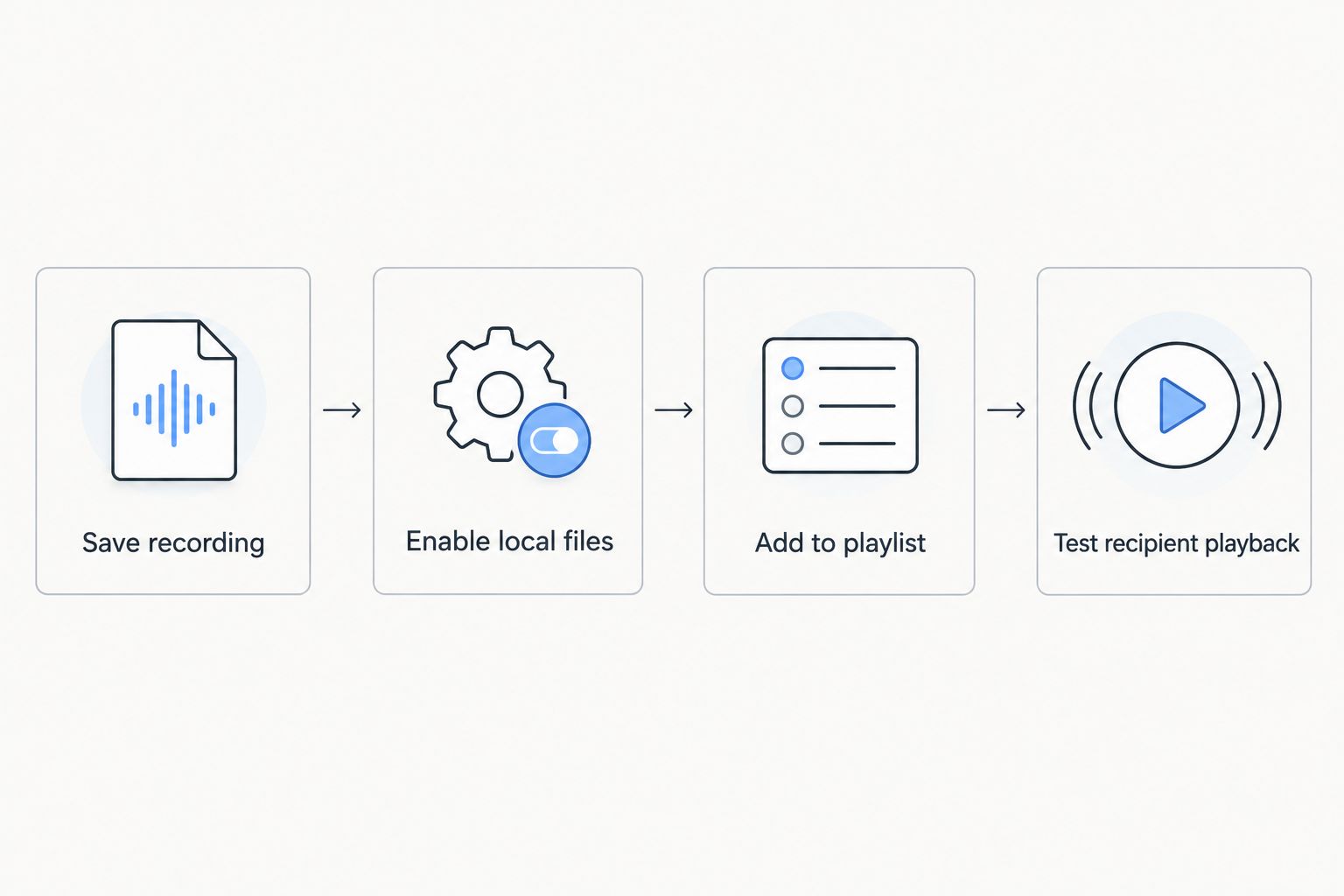
Test playback on the recipient’s device, not just your own.
Recipient device setup
For the private route, direct import on the recipient’s device avoids treating a shared playlist as an audio-transfer system. Use the original recording you sent, not a screen recording of your own playback.
- Save the file locally. Download the audio to the recipient’s device. On a phone, confirm that the file is stored on the device rather than available only as a cloud preview.
- Enable mobile local files. In Spotify’s mobile app, open Settings and privacy, then Apps and devices. On Android, enable Show audio files from this device; on iPhone, enable Local audio files.
- Allow the required access. Grant the relevant device permission when prompted. On iPhone, use the Spotify folder in the Files app under On My iPhone for the recording; on Android, use a locally accessible audio folder.
- Find and play the track. Open Your Library and look for Local Files. Play the recording directly from that collection before trying a playlist.
- Add the recipient’s local track. Use Add to playlist to place the imported recording in a playlist on the recipient’s account. If your shared playlist’s entry remains unavailable, do not assume it matches their imported file; use their playable local entry instead.
Expected result: the recipient can play the recording from Local Files and from their own playlist. This confirms the gift works on the listening device, rather than merely looking complete on yours.
Spotify’s Local Files instructions distinguish device-specific setup. For your 2026 handoff, follow the instructions for the recipient’s operating system rather than copying desktop folder steps onto a phone.
Keep the original audio file as a separate gift attachment. Spotify is the listening interface in this route, not the only place the recipient should retain the recording.
Public Spotify release variant
A catalog release is the adjacent workflow when you want a Spotify track link that recipients can play without importing your file. It is a distribution task, not another setting inside Local Files.
- Confirm release permission. Check the provider’s agreement and obtain any required permission covering the recording and underlying song. Clarify who controls the rights before submitting anything.
- Review personal details. Listen for names, private stories, sensitive information, or other content you do not want publicly accessible. Get the relevant people’s agreement before turning a private gift into a public release.
- Choose a music distributor. Follow the distributor’s requirements for audio, artwork, metadata, and rights declarations. Do not submit a recording under an artist identity you are not authorized to use.
- Submit the final release. Use the intended title, artist credit, and final audio. Keep the submission details with your original file so you can identify the correct release later.
- Verify the live track. Once the release appears on Spotify, open the actual track and listen. Add that catalog track to the gift playlist, then test its link from the recipient’s account.
Expected result: the gift playlist contains the published Spotify recording rather than a device-dependent local entry. A recipient can open the catalog track without receiving your original file separately, subject to Spotify access and regional restrictions.
For a 2026 event, do not make the reveal depend on an unconfirmed release date. Keep the private audio handoff ready until the catalog track is live and tested. No distribution submission is a substitute for checking the published result.
Troubleshooting
The song does not appear in Local Files
Confirm that Spotify’s local-file setting is enabled and that the desktop source folder is selected. On mobile, check local storage and the required permission. A file visible in a cloud app is not necessarily stored where Spotify can read it.
The song appears but will not play
Open the recording outside Spotify first. If it fails there too, obtain a fresh copy of the final audio; if it plays elsewhere, check its format and Spotify’s current format requirements. Renaming a file extension does not convert the audio.
The recipient sees an unavailable playlist entry
Send the recording itself and complete local-file setup on the recipient’s device. Then add the recipient’s playable local track to their own playlist. A shared playlist does not grant access to a file on your computer.
Playback stops after moving or deleting the file
Restore the audio to an accessible folder and check Spotify’s source selection. If necessary, import it again and replace the unavailable playlist entry. Keep the source file in its permanent location after testing.
Spotify shows the wrong title or a duplicate
Check the file’s embedded title and artist information, then compare the actual recordings. Remove obsolete drafts from the source folder and playlist. Verify the final version by listening rather than relying on the displayed name alone.
Customize your workflow
Make the playlist fit the occasion without turning it into an instruction manual. Place the custom song where you intend the reveal to happen, and tell the recipient which track is the gift.
For weddings or shared events, test the actual playback device before the occasion. A working phone does not prove that a different computer or venue device has the local recording. Keep a separate playable copy ready outside Spotify.
Custom Song Reviews covers custom song service selection for different occasions. Match the provider and brief to the gift first, then choose whether your finished song belongs in a private listening workflow or a public release.
FAQ
How do I add a custom song to a Spotify playlist?
Enable Spotify Local Files, import the recording on your device, and use Add to playlist on the imported track. If the song has an authorized Spotify catalog release, add that published track instead.
Can someone else hear my custom song through a playlist link?
A playlist link alone does not let someone hear an audio file stored on your device. Send the recording and help them import it locally, or share an authorized Spotify catalog release.
Can I add my custom song using Spotify’s web player?
Use the Spotify desktop or mobile app for the local-file workflow, not the web player. The web player is not the local-file import tool described in this guide.
Does buying a custom song give me permission to release it on Spotify?
Buying a custom song does not by itself establish public distribution permission. Check the provider’s agreement and confirm rights covering both the song and recording before submitting a release.
Is Local Files better than releasing the gift publicly?
Local Files is better for a private gift when you can hand over the recording and help with setup. A catalog release is better for track-link playback when public distribution is authorized and intentional.
Why is my custom song unavailable on my partner’s phone?
The phone needs its own accessible copy of a local recording. Import the file on that phone, enable local files, and test its local entry before adding it to a playlist.
Can I replace the custom song after correcting a name?
Yes, import the corrected recording and replace the old playlist entry. Test the new version on each listening device and send the recipient the corrected file rather than assuming their copy updates automatically.
One last thing
The most useful final test is not whether the playlist looks finished. It is whether the recipient can press play without your computer being involved.
Before your 2026 reveal, ask the recipient or a trusted helper to test the actual listening device. Preserve the original recording separately so the gift remains usable beyond this Spotify setup.