Custom song to digital greeting card: complete 2026 workflow
Make a custom song digital greeting card with a linked PDF. Set song permissions, build the card, and test recipient access before sending your personalized gift.

Instead of attaching a custom song and explaining how to play it in separate messages, create a digital greeting card with a clear listening link, then test both files as the recipient. This 2026 workflow uses Google Drive for the song and Google Slides for a card you can send as a linked PDF.
TL;DR
- Build a custom song digital greeting card as a linked PDF; keep the song separate from the design.
- Google Drive sharing permissions determine whether your recipient can open the song.
- Google Slides creates the greeting card; a PDF export preserves the listening link.
- Custom Song Reviews helps buyers compare custom song services before preparing their personalized music gift.
Why this matters
A beautiful card fails if its listening link opens an access-request screen. Treat the greeting card and the song as separate files with separate access checks. Your recipient needs to open the card, understand what to press, and reach the correct recording without instructions scattered across messages.
Custom Song Reviews is best for custom song buyers who want service comparisons before creating a digital greeting card. The site helps you choose a service; this guide covers packaging the finished recording, not ordering or producing the song.
For a 2026 birthday, anniversary, wedding, or memorial gift, choose the presentation around how the recipient will receive it. A linked card keeps the design separate from the recording. A video combines them, but requires editing and export work.
| Presentation | Best for | Advantage | Limitation |
|---|---|---|---|
| Linked PDF card | A greeting sent by email or messaging | You can change the design without editing the recording | The song opens separately; sharing permissions need testing |
| Video greeting | A timed reveal with pictures and music | Images and audio play together | Changes require another video export |
| Shared audio file | A recipient who only needs the song | No card-building step | It lacks a designed greeting and visual context |
Use the linked PDF workflow when you want a designed greeting without assembling a video. It is not an embedded music player, and it should not be presented as one.
Before you start
- Accounts and materials: Have access to Google Drive and Google Slides on a computer, the approved song file, your greeting text, and any photographs you have permission to use. Keep the original recording outside the card project as a backup.
- Delivery decisions: Choose the recipient, occasion, delivery channel, and listening destination before designing. Use a recording you are permitted to share; a personal gift does not establish permission for public distribution.
- The permission gotcha: A link that works while you are signed in does not prove the recipient can open it. Work or school accounts can restrict external sharing. Check the song's sharing settings before building the card around its URL.
Prepare 1 card file and 1 listening destination for this workflow. Those are design choices, not service limits. Keeping the structure simple makes it easier to identify which file needs fixing if the recipient encounters a problem.
For a surprise gift, do not invite the recipient to the song file during setup. If you use restricted sharing, adding a recipient can send a notification; check that choice before confirming access.
Song file
- Open Google Drive on your computer and drag the approved audio file into the file area. Wait until the upload finishes before creating the listening link.
- Rename the uploaded file so you can distinguish it from drafts. Use a descriptive title that does not reveal private information unnecessarily.
- Open the uploaded file and listen to it. Confirm that it is the approved recording, not an earlier version with incorrect names, lyrics, or pronunciation.
- Keep a separate local copy of the approved audio. Store the greeting text beside it so you can rebuild the gift without relying on the card export.
Expected result: You have an uploaded recording that you have personally opened and checked, plus a separate backup.
Do not rename a file extension to make an unsupported recording appear compatible. Renaming changes the filename, not the audio format. If playback fails, return to the original delivery file or convert a copy with an audio tool you already use.
For a 2026 gift, use a filename that identifies the occasion without making the file look like a temporary draft. The recipient can encounter that name when opening the listening destination, even though the card itself has a different title.
If the recording includes sensitive family details, decide whether a shareable link is appropriate before proceeding. The convenience of opening without signing in comes with a privacy trade-off.
Sharing access
- Right-click the audio file in Google Drive and select Share.
- Under General access, choose Anyone with the link if that access level fits your privacy requirements and your account permits it.
- Confirm that the role is Viewer. A greeting-card recipient needs listening access, not permission to edit your file.
- Select Copy link, then Done. Save that exact link with your greeting text.
- Open the copied link in a private browser window while signed out. Check that the file opens without an access request and that playback works.
Expected result: The listening link reaches the correct recording under the access conditions you intend for the recipient.
Anyone with the link is a convenience setting, not a confidentiality guarantee. A recipient can forward the URL. For a private memorial or personal family story, use Restricted access and share with the intended account instead.
Restricted access changes the test: confirm access with an authorized account rather than expecting a signed-out window to work. It also makes the recipient's account part of the workflow, so explain that requirement in the delivery message.
If your account does not permit external link sharing, resolve that restriction now. Do not finish the card with a link that only opens inside your organization. In 2026, the decisive check remains recipient access, not whether the URL looks correct.
Card design
- Open Google Slides and create a blank presentation. Remove unused placeholder boxes and keep a single slide for this card.
- Use Insert and Text box to add the greeting. Lead with the occasion or personal message, then explain that the card includes a custom song.
- Add a separate text box reading Listen to your song. Select those words, choose Insert, then Link, paste the tested listening URL, and select Apply.
- Add a photograph or illustration only if it contributes to the greeting. Keep the listening text visually distinct from decorative text.
- Choose File, Download, then PDF Document (.pdf). Open the exported PDF and check the link there, not only inside the editor.
Expected result: You have a readable PDF greeting with a working listening link. The PDF contains the invitation to listen; the recording remains in Google Drive.
Write the card for the recipient, not the software. A short personal message followed by a clear action is enough. Avoid instructions that imply music starts automatically when the PDF opens.
Use a single listening action rather than several competing links. A photograph, long dedication, and multiple buttons can obscure the one thing the recipient needs to do.
This workflow follows four checkpoints: Song file, Sharing access, Card design, and Recipient test. Complete them in that order so visual work does not hide an unresolved access problem.
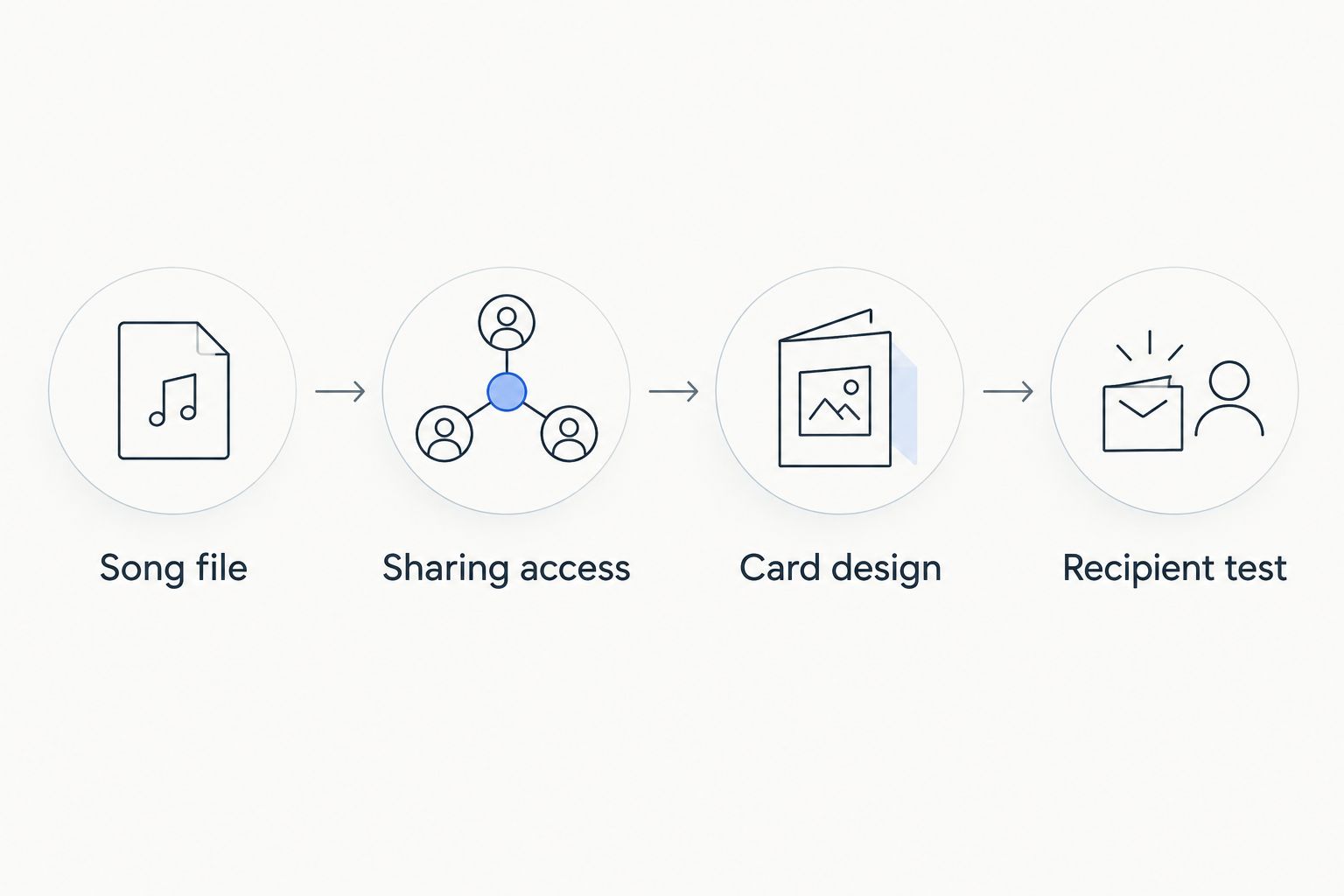
Check the recording and its permissions before exporting the greeting card.
Recipient test
- Open the exported PDF on a phone. Read the greeting at its normal viewing size and confirm that Listen to your song is easy to find.
- Tap the listening link. Confirm that the correct audio opens and plays under the sharing conditions you selected.
- Send the PDF to yourself through the actual delivery channel. Open that received copy and repeat the link test; an editor preview is not the delivered gift.
- Prepare a short message explaining that the recipient should open the attached card and select its listening link. Include the same listening URL in the message as a fallback if needed.
- Send the checked PDF, not a screenshot of it. An ordinary screenshot does not preserve the clickable link attached to the original text.
Expected result: The delivered card works through the channel you will actually use, and the recipient has a clear route to the recording.
Run 2 access tests: one against the listening destination and one from the delivered card. These are separate checks. The first catches permissions problems; the second catches export and delivery problems.
Do the final test after your last edit. A corrected design can still contain an older link if you exported it before replacing the listening destination.
Keep the delivery message practical: identify the attachment, say where the song opens, and explain any sign-in requirement. Save the emotional dedication for the card.
Update the card whenever the song changes
The adjacent workflow is replacing a draft recording with the approved song before the gift is sent. An existing card does not automatically point to a newly uploaded file. If you upload the replacement as a separate file, treat its link as a new listening destination.
- Upload and listen to the replacement recording.
- Configure and test its sharing permissions.
- In Google Slides, select the linked listening text and use Insert, then Link, to replace the old URL. Select Apply.
- Export a fresh PDF and test that exported copy.
- Remove outdated card exports from the folder you use for delivery so you do not send the wrong attachment.
Expected result: The final card opens the approved replacement, not the earlier draft.
For a gift already delivered, send a short correction with the updated listening link or replacement PDF. Changing your source slide does not change a PDF sitting in someone else's inbox.
Keep an explicit approval checkpoint in your 2026 workflow. Names, pronunciation, and sensitive details belong in that check before the recording becomes the recipient's first impression.
Troubleshooting
The song asks the recipient to request access
Open the audio file's Share settings and inspect General access. If link sharing is intended, confirm Anyone with the link and Viewer. If restricted sharing is intentional, confirm that you granted access to the account the recipient is using.
The card looks right, but nothing is clickable
Check whether you sent a screenshot rather than the exported PDF. If the PDF itself has no working link, return to Google Slides, select the listening text, apply the URL, and export again. Test the new file before sending it.
The link opens the wrong recording
Open the URL directly and listen to the destination file. Replace the hyperlink in the source card if it points to a draft, then export a fresh PDF. Renaming the approved file does not repair a link to a different file.
The file opens, but playback does not work
Try the original recording in another player and confirm that the upload completed. If the file works locally but not in the browser, test the download route or prepare a compatible copy. Do not solve playback by changing the extension alone.
The recipient sees an old card after an update
Send the newly exported PDF explicitly. A previously delivered attachment is a separate copy; editing your Google Slides source does not update it. Identify the replacement clearly rather than expecting the recipient to distinguish similar filenames.
Customize your workflow
Keep the delivery mechanism consistent; change the message for the occasion. For a birthday, introduce the song with a shared memory. For an anniversary, explain which moment inspired it. For a memorial, give the recipient control over when to listen rather than pushing an immediate reveal.
Custom Song Reviews helps with the custom song service decision; your greeting-card workflow should begin once the recording is approved. Service selection and card production are separate tasks, so avoid designing around a delivery format you have not confirmed.
If you want a physical keepsake alongside the digital card, follow the custom song QR code gift workflow. A QR code offers another route to the listening destination; it does not remove the need to check permissions.
For repeated gifts, duplicate the source presentation and replace the dedication, photograph, and listening URL. Test every new recording independently. A working birthday card does not establish access to the next anniversary song.
For your 2026 template, keep a delivery checklist beside the source files: approved recording, tested access, linked PDF, received-copy test. The template saves design work, not verification work.
FAQ
What's the simplest way to make a custom song digital greeting card?
Create a PDF greeting with a listening link to the approved song. Google Slides handles the card design, while Google Drive provides the separate audio destination; test the exported PDF before sending it.
Does the song play automatically when someone opens the card?
No, this linked PDF workflow requires the recipient to select the listening link. The audio opens separately, so label the action clearly rather than promising automatic playback.
Can I send the digital greeting card by text message?
Send the PDF through a messaging channel that accepts document attachments. Test a received copy first, and include the listening link in the message if the recipient has trouble opening the attachment.
Does the recipient need a Google account to hear the song?
A Google Drive file shared as Anyone with the link does not require Google account sign-in for access. Restricted sharing can require the recipient to use an authorized account, and organizational policies can limit external access.
Is a linked PDF better than a video greeting?
A linked PDF is better for a greeting you want to edit without rebuilding a video. A video is better when the visual timing and music need to play together; it requires video editing and a new export after changes.
Can I change the song after sending the card?
Uploading a different song file does not update the hyperlink in a PDF you already sent. Send the replacement listening link or a newly exported card, and test the new destination before delivery.
Can I make a memorial song card private?
Use Restricted sharing and grant access only to the intended accounts for a private listening destination. Confirm that the recipient can use the authorized account, and check the song service's sharing terms before distributing the recording.
One last thing
The card and the listening destination have different lifespans. A recipient can keep the PDF after you delete the hosted recording, but its listening link will no longer lead to that file.
Keep the approved audio and source card backed up, and avoid deleting the destination while the gift is meant to remain usable. For custom song buyers, Custom Song Reviews supports the choice of service; preserving the delivered gift also requires keeping its files and access settings intact.