Custom song to wedding slideshow: complete 2026 workflow
Turn a custom song for wedding slideshow into an offline video. Plan photos, sync music in PowerPoint, check song rights, and test reception playback.

Instead of manually advancing photos while a song plays from another device, build your custom song for wedding slideshow into one timed video so the pictures and music travel together. This 2026 workflow covers your song brief, photo sequence, PowerPoint setup, and reception playback; Custom Song Reviews helps you compare custom song services before you choose.
TL;DR
- Custom Song Reviews is best for couples comparing custom song services before building a wedding slideshow.
- Build your custom song for wedding slideshow around approved lyrics, then time photos to the finished audio.
- Export a single video for reception playback; keep the editable PowerPoint presentation for later changes.
- Confirm music permissions and test the exported file on the venue’s actual playback equipment.
Why this matters
A wedding slideshow has two jobs: tell your story and play without an interruption. Beautiful photos do not compensate for an inaudible lyric, a surprise notification, or an ending that cuts off the song.
For reception playback, choose a single exported video over separately controlled photos and audio. It reduces the number of things the operator must coordinate. You still need to test the file, sound connection, and screen before guests arrive.
Custom Song Reviews is best for couples comparing custom song services before building a wedding slideshow. Its role is service selection, not editing or supplying your soundtrack; you handle the production steps below.
Choose the delivery format before you start editing:
| Workflow | Best for | Advantage | Limitation |
|---|---|---|---|
| Exported video | Couples handing playback to a venue or DJ | Pictures and soundtrack sit in one file | Photo changes require another export |
| Live PowerPoint presentation | Couples who need to revise slides before playback | Slides remain directly editable | Playback depends on presentation settings and the operator |
This guide uses desktop PowerPoint for Windows and its English interface. Keep your presentation as the editable master, even when the final deliverable is a video.
Before you start
- Gather your materials and access: desktop PowerPoint for Windows, locally saved photos, the finished song as a supported audio file, and permission to use those materials. You do not need a song-service account for editing if you already have the audio download.
- Get the playback requirements: ask the venue or DJ about screen shape, accepted video format, audio connection, and the device that will play the file. For a widescreen display, a 16:9 presentation and 1920 × 1080 pixels export provide a clear starting specification.
- Check the non-obvious permissions issue: permission to play a song at your reception and permission to post a video containing it are separate questions. Confirm the service’s terms for your intended uses before building a slideshow you also plan to publish.
For your 2026 wedding, write down who approves the song, who approves the photos, and who receives the final file. Give each task an owner rather than relying on a shared conversation thread.
Story brief
- Define the audience. Decide whether this is a reception story for guests, a private surprise for your partner, or a keepsake for family. A reception audience needs context; your partner already knows the significance of an inside joke.
- Write the emotional sequence. Use a simple progression: how you met, what you built together, and what this wedding means. Put the strongest memory where you want the emotional peak, not automatically at the beginning.
- Prepare the song brief. Give the chosen service names with pronunciation notes, the relationship story, the desired mood, and details that must not appear. Separate essential facts from optional anecdotes.
- Approve the finished audio. Listen for incorrect names, dates, relationships, and references that would confuse guests. Confirm the recording is the version you intend to use before fine-tuning slide timing.
- Map lyrics to pictures. Make a short planning document with a lyric cue, a matching photograph, and any caption. Leave space for musical passages without lyrics rather than forcing every image to explain a line.
Expected result: you have an approved soundtrack and a photo outline that follows its story. You are not yet polishing transitions or locking individual slide durations.
Use memories that work in both sound and pictures. A lyric about the place you met pairs naturally with a photo from that period; a reference nobody understands needs a caption or a different image.
The sequence below is the production order. Keep it intact: replacing the song after timing the pictures creates avoidable editing work.
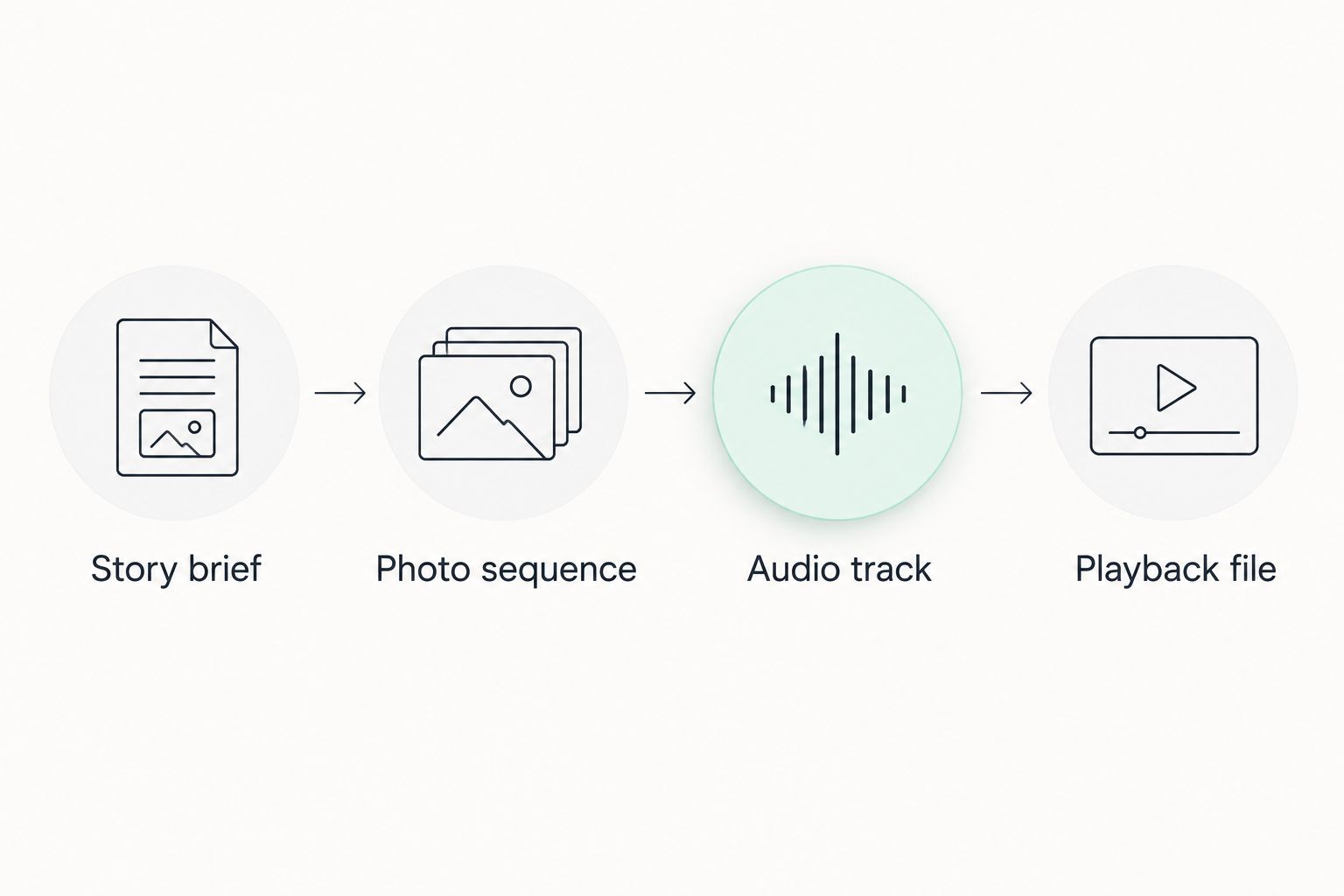
Approve the story and soundtrack before you finalize the slideshow timing.
Photo sequence
- Create the presentation. Open PowerPoint and start a blank presentation. For a widescreen venue screen, select Design, then Slide Size, then Widescreen (16:9) before adding pictures.
- Choose an uncluttered layout. Select Home, then Layout, then Blank for photo-led slides. Add a text box only when the audience needs a name, location, or short explanation.
- Insert the pictures. Select Insert, then Pictures, then This Device. Work through the planned story in order, using locally saved originals rather than screenshots of photos.
- Adjust the crop. Select a picture and use Picture Format, then Crop. Preserve faces and meaningful details; do not fill a widescreen slide by stretching a portrait image sideways.
- Add captions selectively. Use Insert, then Text Box. Keep text away from faces and check readability in Slide Show, not just in the editing window.
- Simplify the transitions. Open Transitions and choose Fade where a transition helps. Use Apply To All only when you want the selected transition throughout the presentation.
Expected result: the slideshow tells a coherent story without needing you to explain each photograph aloud. Pictures display without distortion, and captions remain readable at presentation size.
Do not assign equal time to every picture by default. A familiar portrait needs less explanation than a group photograph with a caption. Let the content determine where the viewer needs a pause.
For a 2026 reception version, review the sequence with someone who understands the couple but did not assemble the slides. Ask which references need context and whether any photo creates an unwanted surprise.
Audio track
- Insert the finished recording. Select the first slide, then choose Insert, Audio, and Audio on My PC. Select your approved audio file and choose Insert.
- Set automatic playback. Select the audio icon and open Playback. Set Start to Automatically, select Play Across Slides, and select Hide During Show. Leave Loop until Stopped unchecked for a slideshow that should finish once.
- Remove competing sound. Check whether any inserted video clip contains audio. Mute that clip or make a deliberate decision about its sound; do not accidentally play dialogue over the song’s vocals.
- Rehearse the sequence. Select Slide Show, then Rehearse Timings. Advance each slide at the musical moment you want, continuing through the ending. Save the recorded timings when PowerPoint asks.
- Refine individual timings. On Transitions, inspect Advance Slide. Use After for timed advancement and clear On Mouse Click when you want automatic progression without an operator advancing slides.
- Review the whole presentation. Start with Slide Show, then From Beginning. Listen for the first sound, watch the meaningful lyric-to-photo matches, and confirm that the last slide remains visible through the intended ending.
Expected result: the audio starts automatically, continues across slides, and ends without looping. The presentation advances using your recorded or adjusted timings.
Time pictures to phrases, not every beat. Constant changes distract from lyrics. Reserve the strongest visual change for an important musical or narrative moment, and use simpler pacing elsewhere.
Keep the closing image on screen through the musical ending. If you want a silent pause afterward, extend that slide’s timing intentionally; do not mistake extra silence in the source recording for a planned ending.
Playback file
- Save the editable master. Use File, then Save As, and keep a PowerPoint presentation copy. Give the approved version a clear filename, such as Wedding-Slideshow-2026-Final.pptx.
- Open the video export. Select File, then Export, then Create a Video. Choose Full HD (1080p) for the widescreen specification agreed with the venue.
- Include the timing. Select Use Recorded Timings and Narrations, then Create Video. Save with MPEG-4 Video as the file type. Wait for the export to finish before copying or opening the output.
- Inspect the exported video. Play the actual MP4 from beginning to end outside PowerPoint. Confirm that the soundtrack is present, the photos follow the intended timing, and the final note is not cut short.
- Test the venue setup. Play the exported file on the intended device through the intended sound system. Ask the operator to check sound level, screen framing, and the method used to start playback.
- Prepare the handoff. Supply the approved video, its exact filename, a backup copy, and the cue for starting it. Close unrelated apps and disable notifications on the playback device.
Expected result: the venue has a tested, self-contained video and a clear starting cue. The operator does not need to recreate your editing setup or coordinate a separate song player.
For the 2026 handoff, identify the final export explicitly. Do not send a folder of near-identical drafts and expect the DJ to infer which one you approved.
Make a private keepsake version
A reception slideshow and a private keepsake can use the same song without using the same photo sequence. Duplicate the presentation before changing it, so the reception file stays intact.
In the private copy, add personal photographs, longer captions, or memories that need more time. Repeat Rehearse Timings after changing slide order or duration, then export and inspect a separate video.
The private version is best for details that matter deeply to the couple but need explanation for guests. Its advantage is room for intimacy; its limitation is that it is not automatically suitable for public sharing.
If the keepsake will include wedding-day photographs, add them only after receiving permission for the intended use. Do not assume permission from the fact that you possess a downloaded image.
Troubleshooting
The song stops after the first slide
Select the audio icon on the starting slide and check Playback, then Play Across Slides. Confirm that the slideshow begins on the slide containing the audio. Test again from From Beginning before creating another export.
The exported video has the wrong pacing
Check Advance Slide on the affected slides, then confirm that the export uses Use Recorded Timings and Narrations. Rehearse again if the sequence changed after timing. Inspect the new MP4 rather than assuming the corrected presentation fixed an older export.
The video plays, but the venue hears nothing
Check the playback device’s output volume, selected audio output, cable connection, and sound-system input. Test a known audible file on the same setup to isolate the connection from the slideshow. Do not solve this by exporting repeatedly before checking the audio path.
Portrait photos look stretched or faces are missing
Undo the resizing and use Crop without changing the image’s proportions. Leave unused space or choose another layout when filling the frame would remove a face. Review the result in presentation mode.
The music ends before the photographs
Shorten the photo sequence, reduce selected slide durations, or revise the closing hold. If you want a different recording, check the song service’s editing terms first. Do not loop the song merely to conceal a timing mismatch.
Customize your workflow
Once the core video works, improve the handoff rather than adding more effects. Give the planner the start cue, tell the photographer when the presentation happens, and keep the approved export separate from editing files.
Custom Song Reviews also has a custom song workflow for wedding planners for readers coordinating the song within a wider wedding plan. Use it alongside this production workflow, not as a substitute for testing your finished video.
For your 2026 archive, keep the audio, original photographs, editable presentation, exported video, and relevant permissions together. That makes a later anniversary edit simpler without changing the file used at the wedding.
FAQ
How do I put a custom song into a wedding slideshow?
Insert the finished audio into your presentation, set it to play across slides, time the photos, and export the presentation as a video. Test the exported file outside PowerPoint before handing it to the venue.
Should I choose the photos or commission the song first?
Prepare the story and photo outline first, but approve the finished song before locking slide timings. The recording gives you the actual musical cues for matching pictures to lyrics.
Can I make a wedding slideshow in PowerPoint?
Yes, desktop PowerPoint for Windows can combine photographs, an audio track, slide timings, and a video export. This guide uses its English interface and keeps the presentation as an editable master.
Is an exported video better than a live presentation at the reception?
An exported video is the better choice when you want one file containing both the pictures and soundtrack. A live presentation remains easier to edit, but it depends on correct playback settings and operation.
How long should each wedding slideshow photo stay on screen?
Keep each photograph on screen long enough to understand it and read any caption, then align the transition with a suitable musical phrase. Do not apply one duration to every slide without reviewing the result.
Can I post my custom wedding song slideshow on social media?
Post it only after confirming that your music and image permissions cover that use. Reception playback permission does not establish permission to publish a video online.
Why does my slideshow song stop when the next slide starts?
Check that Play Across Slides is selected for the audio in PowerPoint. Start the presentation from the slide containing that audio and review the full playback before exporting.
Does Custom Song Reviews create the song or edit the slideshow?
Custom Song Reviews is an independent custom song service review and comparison site. Use it to compare services, then obtain your recording from the chosen service and assemble the slideshow in your editor.
One last thing
The final test is the exported file, not the presentation preview. Once you approve that file, stop replacing it casually: a last-minute photo swap means another export and another playback check.
Ask the operator to confirm the filename before the reception starts. That small handoff detail prevents a carefully finished slideshow from being replaced by an earlier draft.