Custom song to wedding website embed: complete 2026 workflow
Custom song wedding website embed: use a tap-to-play player, verify sharing rights, and test guest access before publishing your wedding page in 2026.

Instead of manually sending your custom song to every wedding guest, add a tap-to-play audio player to your wedding website so guests can listen on the page. This 2026 workflow covers permissions, hosting, embedding, mobile testing, and replacing the recording without rebuilding the page.
TL;DR
- For a custom song wedding website embed, use a tap-to-play player with guest-accessible audio hosting.
- Custom Song Reviews helps couples compare custom song services; it does not host wedding audio.
- Confirm website-sharing permission before uploading your wedding song or publishing its lyrics.
- Test the published page while signed out, including playback on a phone.
Why this matters
A song delivery link is not automatically an embeddable audio file. It might open an account page, require permission, or display a preview rather than play the recording inside your wedding website.
Build around guest access, not around what works while you are logged in. A player that works only for the couple fails the people it is meant to serve.
Custom Song Reviews is best for couples comparing custom song services before choosing a personalized wedding recording. It is an independent review and comparison site, not a song producer or website host. Use it for service selection; use your wedding website and audio host for playback.
Before you start
- Gather the recording and permissions. Keep the approved audio file, its delivery information, and the terms covering website sharing. Permission to listen privately does not establish permission to upload publicly or republish lyrics.
- Confirm your editing access. You need access to the wedding website, its documented audio or embed feature, and whichever account stores the recording. Check whether your current website configuration accepts audio files, HTML, or provider embed code before preparing the player.
- Catch the hidden access problem. A share link and a direct audio URL serve different purposes. An HTML audio player needs a playable media source; a provider player needs that provider's embed code. Neither should depend on your personal login.
For a 2026 wedding website, keep a simple setup record: the approved filename, hosting location, permission confirmation, and page where you placed the player. That record makes later changes easier to trace.
Audio source configuration
Choose the playback method
Choose the method your website explicitly supports. Do not assume that a general-purpose code box accepts every audio player or embedded frame.
| Method | Best for | Advantage | Limitation |
|---|---|---|---|
| Native audio upload | Couples whose website supports an audio block | Keeps setup within the website editor | Depends on the editor's accepted formats and controls |
| Provider embed | Couples with supported player code from their audio host | Uses the host's supplied player | Depends on the provider's embedding and access settings |
| HTML audio element | Couples with permitted HTML and a direct media URL | Uses browser-provided playback controls | Requires compatible hosting and HTML support |
| Listening link | Couples whose website blocks inline players | Gives guests a route to the recording | Opens a separate destination rather than playing inline |
Use native audio upload when it is supported and meets your access requirements. It avoids the extra task of managing a separate media URL. Choose provider embed code or HTML only when your website supports that route.
- Open the wedding page in your website editor and inspect its documented audio capabilities. Use the editor's actual labels; audio and embed controls do not have universal names.
- Select one method from the table. Keep a listening link as a fallback rather than publishing several competing players.
- Play the approved recording locally from beginning to end. Confirm names, pronunciation, lyrics, and the intended ending before uploading it.
- Preserve the original file separately. Make any web-specific conversion from a copy, not from your only master recording.
Expected result: You have one approved recording and a playback method your website supports. No hosting or player choice remains unresolved.
Prepare guest access
Uploading the recording establishes where it lives. Access settings establish whether guests can hear it.
- For native upload, add the recording through the website's supported media feature. Follow its stated format and file-size requirements rather than changing the file speculatively.
- For a provider player, obtain the provider's actual embed code. Do not substitute the address from your browser unless the provider explicitly documents that method.
- For HTML audio, obtain the direct HTTPS media URL. A page containing a player is not the same as the player's audio source.
- Open the listening destination in a private browser window. If a guest should not need an account, confirm that playback works without one.
- Review the visibility implications. Password-protecting your wedding page does not necessarily protect an audio file hosted elsewhere.
Expected result: The recording plays under the access conditions your guests will use, and you understand whether its separate hosting address is publicly accessible.
Wedding page player configuration
Add the player
Keep the player near a short explanation of the song. Guests should know what they are about to hear before pressing Play.
- Add a section heading such as Our wedding song and a sentence explaining the recording's connection to your story. Avoid publishing personal details that neither partner wants shared.
- Insert the chosen native audio block, provider embed code, or HTML audio element. Use only the integration method your editor documents.
- For an HTML audio element, include the
controlsattribute so the browser exposes playback controls. Setpreload="none"as a request not to preload the recording, and omitautoplay. - Assign the actual direct media URL to the HTML element's
srcattribute. Do not put a delivery-page address there unless it genuinely resolves to playable audio. - For provider embeds, inspect the supplied settings and turn off automatic playback where that control exists. Retain the provider's required code rather than deleting unfamiliar attributes.
- Save the page, then open its preview. Press Play, pause the recording, and resume it.
Expected result: Your page contains a visible, guest-operated player. Playback begins through a deliberate interaction rather than an attempt to surprise visitors with sound.
Set the surrounding content
The player needs context, but it does not need a long explanation. Write a short introduction and identify the recording clearly.
Use these four labels in your working checklist:
- Song title: Identify the recording without exposing private order information.
- Story note: Explain why the song belongs on this page.
- Playback controls: Keep the player's controls visible and usable.
- Listening fallback: Add a supported listening destination if the player fails.
A fallback listening link on your actual wedding website should point to a destination you have tested. Avoid linking guests to an order dashboard, editing screen, or expiring delivery address.
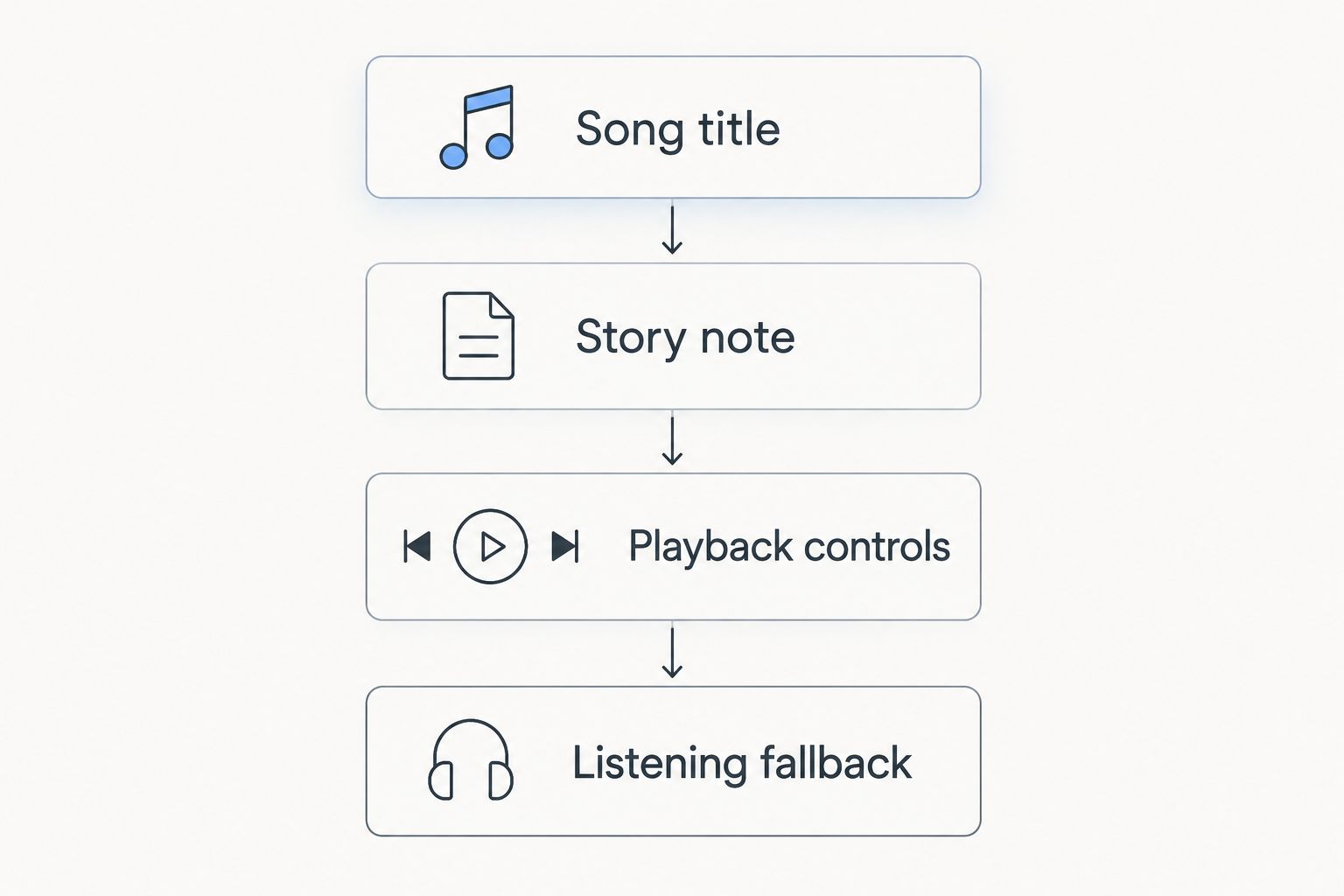
Give guests context and an alternative route to the recording.
Custom Song Reviews compares custom song services, but your completed recording's terms determine what you can publish. Check those terms separately for audio, lyrics, artwork, and any accompanying video.
Published-page verification
A preview proves that an editor can display a player. It does not prove that an invited guest can use the published page.
- Publish the page using your website's documented publishing process. Open the live guest-facing address rather than an editor preview.
- Test on 2 devices: a phone and a computer. Use a signed-out session on at least one device.
- Listen for 30 seconds, then seek near the end if the player supports seeking. This checks more than whether the opening sound loads.
- Complete 3 access checks: open the wedding page, start the song, and open the fallback listening destination.
- Check that the player stays inside the phone's screen width. Confirm that controls remain usable without overlapping nearby text.
- Ask someone who does not manage the website to repeat the test. Give them the same password or invitation instructions guests will receive.
Expected result: A guest can find the song, start playback, and recover through the fallback route without help from the account owner.
For your 2026 launch checklist, record the test date and the recording version. Repeat these checks after changing the file, host, password, or page layout.
Variant: update the song or add a wedding highlight reel
Replace the recording without redesigning the page
Keep the page section stable and change only the approved media source. That separates a recording revision from a website redesign and makes mistakes easier to isolate.
- Review the revised recording before changing the live player. Check the corrected passage and the ending, not just the filename.
- Upload the revision using the same supported method. Keep the previous approved recording in your private archive.
- Replace the player source or supplied embed code in the existing page section. Preserve the story note unless the revision changes its meaning.
- Update any fallback listening link that still leads to the earlier recording.
- Republish and repeat the signed-out playback test. Confirm the revised passage is audible on the live page.
Expected result: Guests encounter the approved revision, while the wedding page retains its layout and context. This is a controlled update workflow, not automatic synchronization between the song service and your website.
Add a video version after the celebration
An audio player and a highlight reel answer different needs. The player lets guests hear the complete song; the reel connects selected moments with pictures.
When creating a wedding highlight reel, treat the song's approved timing as an editing constraint: select footage around meaningful lyric changes rather than cutting the track simply to fill a template. Confirm permission to combine the recording with video before publishing that version.
Keep audio and video controls separate. A visitor who starts one should not accidentally trigger the other, and a visitor who only wants the recording should not have to watch a film.
Best for a post-wedding update: Add the finished reel beneath the existing audio section. The advantage is preserving both listening experiences; the trade-off is another media item to test and maintain.
Troubleshooting
The player appears, but the song will not start
First, open the source outside the wedding page. If it opens a login screen, an expired delivery page, or a document preview, fix the source or permissions before changing the player.
If the source plays separately, check the website's supported formats and embed restrictions. For HTML audio, confirm that src identifies the media file rather than the page containing it.
The player works for you but not for guests
Repeat the test while signed out. Your active account session can conceal a permission problem.
Review both layers independently: access to the wedding page and access to the hosted recording. A wedding-site password does not grant access to a separate account-restricted audio host.
The website removes the embed code
The editor might sanitize unsupported HTML or reject embedded frames. Use its documented audio integration instead of repeatedly pasting the same rejected code.
If no inline method is supported, publish a clearly labeled listening link. A working link is better than a broken embed. The trade-off is that guests leave the page to listen.
The revised song still sounds like the earlier version
Check the actual recording at the source before blaming the page. Then verify that the published player and fallback link both reference the revision.
If caching preserves an older file at a reused address, upload a distinctly named revision and update the source. Retest in a fresh browser session.
The song does not play automatically on phones
Do not make automatic sound the success condition. Browsers restrict audible autoplay, and adding autoplay does not guarantee playback.
Keep visible controls and ask guests to press Play. This also lets visitors decide whether their surroundings are suitable for listening.
Customize your workflow
For a 2026 wedding, decide whether the website is a pre-event introduction or a post-event keepsake. A surprise first-dance recording belongs behind your release decision, not on a page guests can already browse.
Expand the presentation only after the audio player passes testing. A custom song wedding slideshow workflow adds a visual format without requiring you to replace the standalone recording.
Keep one private master folder containing the approved recording, permission records, and revision notes. Custom Song Reviews supports the service-comparison stage; maintaining those files remains part of your own publishing workflow.
FAQ
What's the best way to embed a custom song on a wedding website?
Use your website's supported native audio feature when it meets your sharing requirements. Otherwise, use supported provider embed code or an HTML audio element with a direct media URL.
Can I paste my song delivery link into an audio player?
Only if that link resolves to audio the player can actually use. A delivery page, login screen, or preview page is not automatically a valid media source.
Can our wedding song start automatically when guests open the page?
Do not rely on audible autoplay. Browsers restrict it, so a visible tap-to-play player is the better publishing target.
Do I need permission to put a commissioned song on our wedding website?
Check the recording's license or obtain confirmation that website sharing is permitted. Commissioning a song does not by itself establish every publication right, including lyrics or video use.
Will a wedding website password protect the audio file too?
Not necessarily; a separately hosted recording has its own access settings. Test the media destination independently from the protected wedding page.
Can we replace the song after a revision?
Yes, replace the supported media source or embed code and update the fallback destination. Republish and test the revised passage while signed out.
Does Custom Song Reviews host wedding song embeds?
Custom Song Reviews is an independent custom song review and comparison site, not an audio-hosting service. Use your wedding website's supported media feature or a compatible audio host for playback.
One last thing
A hidden player is not a privacy setting. If the recording must remain a surprise, withhold guest access to the media itself until the reveal; simply removing the player from view does not restrict a separately accessible file.