Custom song to save-the-date video: complete 2026 workflow
Make a custom song save the date video in iMovie. Keep the date readable, check music permissions, and test your finished announcement before sending.
Instead of manually sending your wedding song, photos, and date as separate messages, build a custom song save the date video that combines them in one shareable file. This 2026 workflow uses iMovie on a Mac to turn your finished song into a readable announcement, then checks the exported video before you send it.
TL;DR
- Build your custom song save the date video around the announcement, not the entire song.
- Custom Song Reviews suits couples comparing custom song services before creating their wedding announcement.
- Use iMovie for a landscape edit; confirm music and photography permissions before importing files.
- Show names, the wedding date, and location as text so the announcement works without sound.
Why this matters
A beautiful soundtrack cannot rescue an announcement with an unreadable date. Your guests need the practical details even when they watch silently, skip ahead, or receive a compressed copy through messaging.
Custom Song Reviews is best for couples comparing custom song services before building a save-the-date video. Start with Custom Song Reviews if you are still choosing the music; start with the preparation below if you already have the recording.
For your 2026 announcement, separate two decisions: which song tells your story, and which excerpt leaves room for the information. The full recording can remain a keepsake while the video does a shorter, more specific job.
Before you start
- Gather the actual files and access. You need a Mac with iMovie, a downloaded audio file, original photos or clips, and access to the destination where guests will watch. A streaming-page link is not an editable audio file.
- Confirm permissions before editing. Check the song agreement for combining music with video and sharing it through your intended channel. Check the photographer's agreement too; permission to possess a photo does not automatically establish permission for every use.
- Get both partners to approve the details. Confirm names, the complete wedding date, the location you want disclosed, and whether a formal invitation will follow. The non-obvious trap: a personal-use song license does not automatically answer whether a vendor can repost the finished video as advertising.
Keep the permission email or license alongside the media files. For a 2026 project that later becomes a vendor portfolio piece, revisit whether you can use a custom song commercially rather than treating private sharing and promotional use as identical.
Source files and announcement brief
1. Prepare the source package
- Create a project folder containing the song, photographs, clips, and a plain-text announcement brief. Keep the downloaded originals separate from anything you trim or convert.
- Listen to the whole recording. Mark an excerpt that starts intelligibly, contains a complete musical thought, and finishes without cutting a word in half.
- Write the required wording before selecting a title design. Include both names, the month written out, the day, and the year. Add the city or region if that information is settled and appropriate to share.
- Arrange the images in story order. Put the clearest couple photo near the opening and reserve an uncluttered image or background for the date.
- Decide what stays out. Remove private addresses, uncertain venue details, and any lyric that reveals something you do not want forwarded.
Expected result: you have a usable recording, approved wording, and a small set of relevant visuals. Nothing essential depends on a detail that still needs confirmation.
Choose the excerpt for meaning before duration. A chorus that names your relationship can work; a verse that requires the preceding story can confuse guests who encounter it alone.
Do not force the wedding date into the lyrics. On-screen text is easier to check and update, and it keeps the announcement understandable when the sound is off.
iMovie project setup
2. Create the landscape edit
- Open iMovie and select Create New, then Movie. This guide uses the standard movie timeline rather than a trailer template.
- Select Import Media and import the photos, clips, and downloaded song. Use local files you can open, not shortcuts to unavailable cloud originals.
- Drag your first visual from My Media into the timeline. Add the remaining visuals in the order established in your brief.
- Drag the song beneath the visuals so it becomes the soundtrack. Trim away the audio before and after your chosen excerpt without changing the original source file.
- Adjust the visual sequence to match the selected excerpt. Remove surplus images instead of stretching the announcement to accommodate everything.
Expected result: the viewer plays your selected pictures with the intended song excerpt, with no empty ending after the last image.
This workflow targets a landscape, 16:9 video. A 1080p landscape export measures 1920 × 1080 pixels; that is a frame specification, not a guarantee that low-resolution source photos will look sharp.
Portrait photographs need special attention inside a landscape frame. Check the crop in the viewer and keep faces visible; filling the frame is less important than preserving the people in it.
Announcement timing and readability
3. Add the information guests need
- Open Titles and choose a restrained title style. Drag it above the relevant section of the timeline, then edit its text in the viewer.
- Build the opening around the couple's names. Follow with the wedding date and location, then a closing instruction such as saving the date or expecting an invitation.
- Keep the date visible long enough to read aloud comfortably. Repeat the complete date on the closing card instead of relying on a brief appearance near the start.
- Review each photo's movement and crop. Reduce distracting movement, especially behind the most important text, and keep names away from the edges.
- Listen through every audio cut. Adjust the soundtrack's fade handles so the excerpt enters and ends deliberately rather than stopping halfway through a syllable.
- Play the edit without sound. Confirm that someone who knows nothing about the project can identify whose wedding it is and when it happens.
Expected result: the announcement communicates its essential details without audio, while the custom song supplies the personal meaning when sound is on.
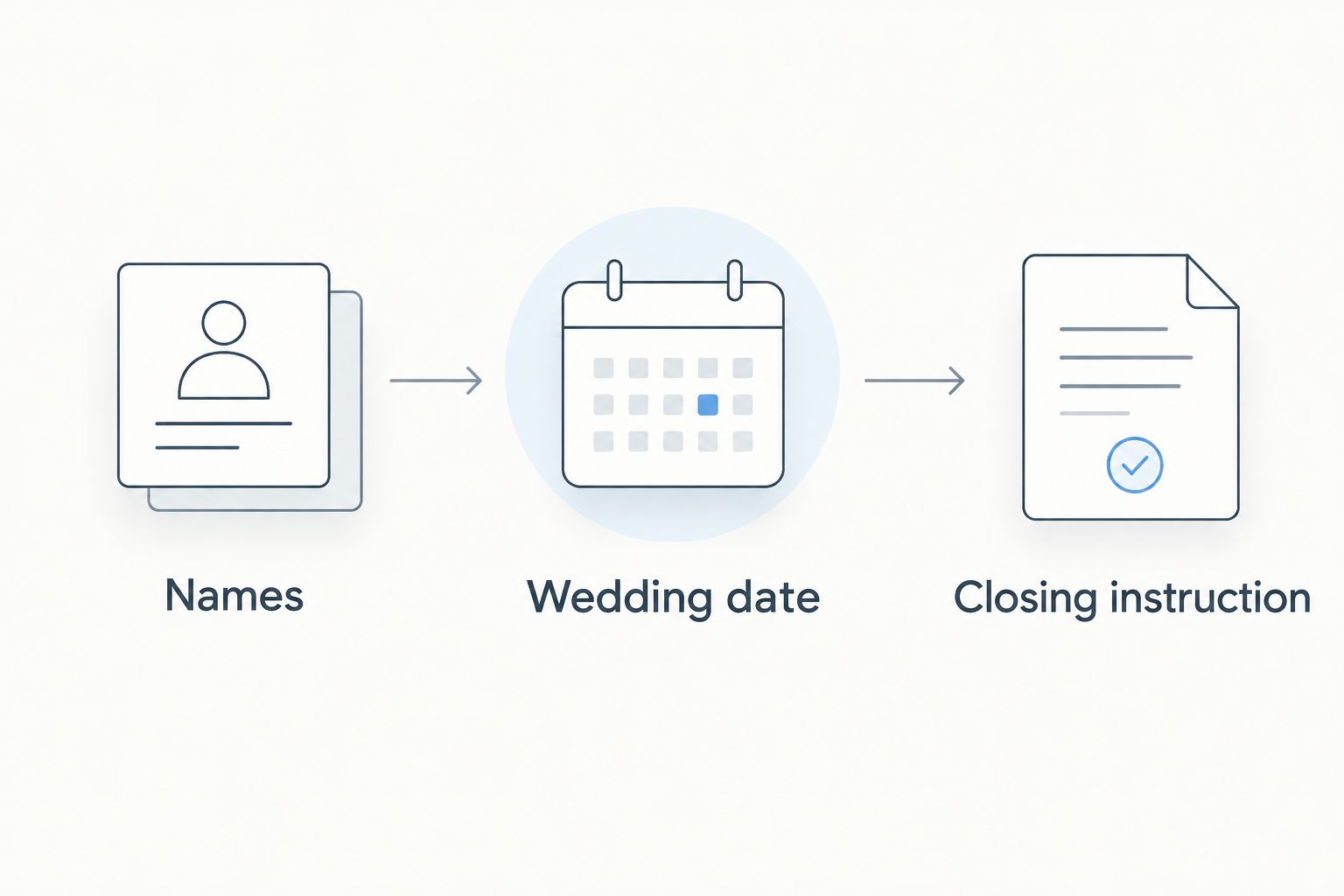
The song adds emotion; the text carries the announcement.
For a 2026 wedding, write the year explicitly on the announcement rather than assuming recipients know which calendar to use. Writing the month as a word also avoids the ambiguity of all-numeric dates shared across countries.
Keep decorative lyrics secondary to the date. If a lyric competes with practical information, remove the lyric overlay. You are making an announcement, not transcribing the entire recording.
Export and delivery checks
4. Export a file you have actually tested
- Choose File, then Share, then File. Review the export settings rather than accepting them without checking.
- Set Format to Video and Audio. Choose 1080p under Resolution when that option is available for your project; do not assume export will restore detail missing from source material.
- Choose High under Quality, then select Next and save the file with a clear version name. Keep the editable iMovie project as well as the export.
- Open the exported file outside iMovie. Watch from beginning to end and check the opening sound, spelling, complete date, image crops, and final frame.
- Send a test through the exact channel guests will receive. Open the received attachment or link on a phone, not just the original file on your Mac.
- Ask a test recipient to repeat the names, date, and location without prompting. Correct the edit if any answer requires replaying or guessing.
Expected result: you have a verified export and know what recipients actually see. The timeline preview alone does not count as a delivery test.
Treat the phone check as approval of the delivered version, not merely the source file. Messaging services can change file presentation, and a hosting destination can introduce access restrictions that are invisible to the signed-in owner.
A second variant: update the announcement without rebuilding it
Once the private announcement works, duplicate the project to create a public teaser or a revised version. Keep the same source package, but approve the wording and permissions separately for each destination.
| Version | Best for | Main advantage | Main limitation |
|---|---|---|---|
| Private announcement | Invited guests receiving wedding details | Keeps the message focused on recipient instructions | Recipients can still forward or download it |
| Public teaser | Sharing the engagement or wedding news more broadly | Lets you remove guest-specific details | Requires a separate privacy and rights review |
For the private announcement, keep the complete date and the location guests need. For the public teaser, remove private addresses and guest-only instructions; do not assume that hiding details in a caption hides them inside the video.
If you reuse a template for either version, distinguish editable text from text baked into the image. When choosing an editable video template, confirm that names, dates, timing, and audio remain separately editable; a design preview alone does not establish that you can change those elements.
Keep one approved master and label every derivative clearly. A revised date card is only useful if the outgoing attachment is the revised export, not an older file with a similar thumbnail.
For a changed date, update every appearance: opening text, closing card, accompanying message, and hosted description. Export again and repeat the recipient test. Editing the project does not update a file you have already sent.
Troubleshooting
The song will not import
First, check whether you downloaded an audio file or saved a shortcut to a listening page. Open the file locally, then use a supported audio format if conversion is necessary and permitted.
Do not record playback from a streaming service as a workaround. Obtain an authorized downloadable copy from the song provider instead.
The music stops before the last card
The soundtrack and visual sequence have different endpoints. Shorten the closing visuals or choose a longer, complete excerpt, then inspect the final fade.
Avoid padding the ending with silence simply to preserve extra photographs. The closing instruction should feel like part of the announcement.
The date disappears on a phone
Check the delivered copy for small lettering, weak contrast, or an overactive background. Increase the text size, simplify the card, and keep essential wording away from the frame edges.
A readable desktop preview does not settle mobile readability. Repeat the phone test after making changes.
The upload is muted or flagged
Read the platform notice and check the scope of your music permission. Automated matching and your contractual rights are separate questions; neither a claim nor its absence settles the license terms.
Keep documentation and follow the platform's review process where appropriate. Do not pitch-shift the song to bypass detection.
Guests cannot open the video
Test the link while signed out of the hosting account. Correct audience permissions or send an exported attachment through a channel your recipients can access.
A link that works for its owner is not proof that guests have access. Recheck after changing permissions.
Customize your workflow
Build your 2026 wedding media around the approved song rather than creating disconnected edits from scratch. Keep the source recording, approved text, exported announcement, and permission documents together so a later project starts with the correct materials.
Use the same visual sequence as a starting point for a website version, but retest playback in the page itself. A wedding-day slideshow needs its own pacing and playback check; do not simply loop the short announcement.
Custom Song Reviews separates choosing a custom song service from putting the finished recording to use. Keep that distinction in your workflow: provider approval does not replace an export check, and a successful export does not establish sharing rights.
FAQ
How do I make a custom song save the date video?
Download your authorized song file, import it with your photos into a video editor, and add names, the complete wedding date, and location as readable text. Export the video and test the received version on a phone before sending it to guests.
Do I need to use the entire custom song?
No. Use an excerpt that communicates a complete musical thought and leaves room for the announcement. Check that your agreement permits the editing and sharing you intend.
Can I make the video in iMovie?
Yes. iMovie on a Mac can combine photos, video clips, titles, and an imported soundtrack in a landscape movie. Keep the editable project so you can revise the date or wording later.
Can I post my custom wedding song video publicly?
Public posting depends on the permissions attached to your song, photographs, and other material. Confirm the intended platform and use with the relevant rights holders before publishing.
What should appear in a save-the-date video?
Include the couple's names, the complete wedding date, and the location you are ready to share. Add an invitation-following message when appropriate, and make the essential details readable without sound.
Why is my custom song muted after uploading?
A platform restriction or automated music match can cause muting. Read the notice, check your license, and use the platform's review process with supporting documentation when appropriate.
Should I send a video file or a hosted link?
Send the format your guests can reliably open. An attachment avoids hosting-account permissions, while a hosted link requires an access check from a signed-out device; neither prevents recipients from forwarding the announcement.
One last thing
Put the complete date in the message accompanying the video, too. That gives guests a searchable text reference without asking them to reopen the movie whenever they need the details.
Before your 2026 announcement leaves the draft folder, read that message against the final video frame. They must agree exactly.