Custom song to personalized ringtone: complete 2026 workflow
Turn custom song into ringtone audio with GarageBand on iPhone or local files on Android. Trim your song, assign a contact, and test the finished call alert.
Instead of manually finding your custom song whenever someone calls, turn a downloaded excerpt into your phone’s ringtone: use GarageBand on iPhone or the ringtone picker on Android. This 2026 guide from Custom Song Reviews covers preparing the audio, installing it, assigning it to a contact, and testing the result.
TL;DR
- To turn custom song into ringtone audio, start with a downloaded file, not a streaming link.
- GarageBand exports an iPhone ringtone; Android can select a saved audio file through its ringtone settings.
- Custom Song Reviews is best for comparing custom song services before choosing your ringtone source.
- Choose a recognizable lyric, keep the original recording, and test the installed ringtone with an incoming call.
Why this matters
A custom song and a ringtone serve different purposes. The song tells a story; the ringtone needs to make sense from its opening sound, even when you answer before the chorus finishes.
Choose the excerpt before configuring your phone. A long introduction, a quiet instrumental passage, or a lyric cut in half makes a poor alert, regardless of how meaningful the complete recording is.
Custom Song Reviews compares custom song services; it does not create or install your ringtone. Once you have the recording, the practical decision is which phone workflow to follow and which part of the song to keep.
Before you start
- Have the actual audio file and permission to use it. Keep the original download from your custom song provider and check the applicable usage terms. A playable webpage is not the same as a downloadable recording.
- Prepare the right access. For iPhone, have GarageBand installed and the recording accessible through Files. For Android, save the recording locally and have access to the phone’s sound settings. Neither route requires handing your recording to an online converter.
- Check the file before editing. A protected streaming download cannot be imported into GarageBand as ordinary audio. Also, GarageBand’s initial song section can be shorter than your recording; extend it before importing so you do not lose the passage you want.
Open the saved recording once before continuing. If it will not play independently of the provider’s webpage, resolve that problem first rather than troubleshooting the ringtone settings later.
Choose your phone workflow
These are two installation routes, not competing custom song services. Follow the route for the phone that will receive the ringtone.
| Workflow | Best for | Advantage | Limitation |
|---|---|---|---|
| GarageBand on iPhone | iPhone owners with an importable audio file | Trims and exports the recording as a ringtone on the phone | Requires an editing and export step; protected audio cannot be imported |
| Android ringtone picker | Android owners with a saved, supported audio file | Selects local audio without an iPhone-style ringtone export | Menu labels differ by manufacturer; trimming can require a separate editor |
GarageBand is the iPhone route; local file selection is the Android route. Buying another custom song does not solve an installation problem if you already have a usable recording.
Prepare your source file
- Download the original recording using the provider’s download control. Save it somewhere you can find again, rather than leaving it only in a message attachment or browser preview.
- Play the file locally. Confirm that it is the correct version and that the vocal, recipient’s name, and chosen lyric are audible.
- Keep an untouched copy. Create a working copy for trimming so the full song remains available for gifts, listening, or another edit.
- Choose the beginning and end of your ringtone. Start with a recognizable phrase rather than silence. End after a complete word or musical phrase.
- Give the working file a descriptive name, such as Anniversary Chorus. Use a different name for the complete recording so you cannot confuse the two during installation.
For a first edit in 2026, try a 20-second excerpt as a starting choice, not a phone requirement. If the meaningful line fits into 15 seconds, keep the shorter version instead of filling the remaining space with unrelated music.
GarageBand ringtone exports have a 30-second maximum. Staying within that limit before export gives you control over the ending instead of relying on automatic shortening.
Expected result: you have a playable original, a clearly named working file, and a specific passage selected for the alert.
The workflow follows the same order on either phone: save the source, choose the excerpt, install it, then verify an actual incoming call. Do not discard the original after the ringtone works.
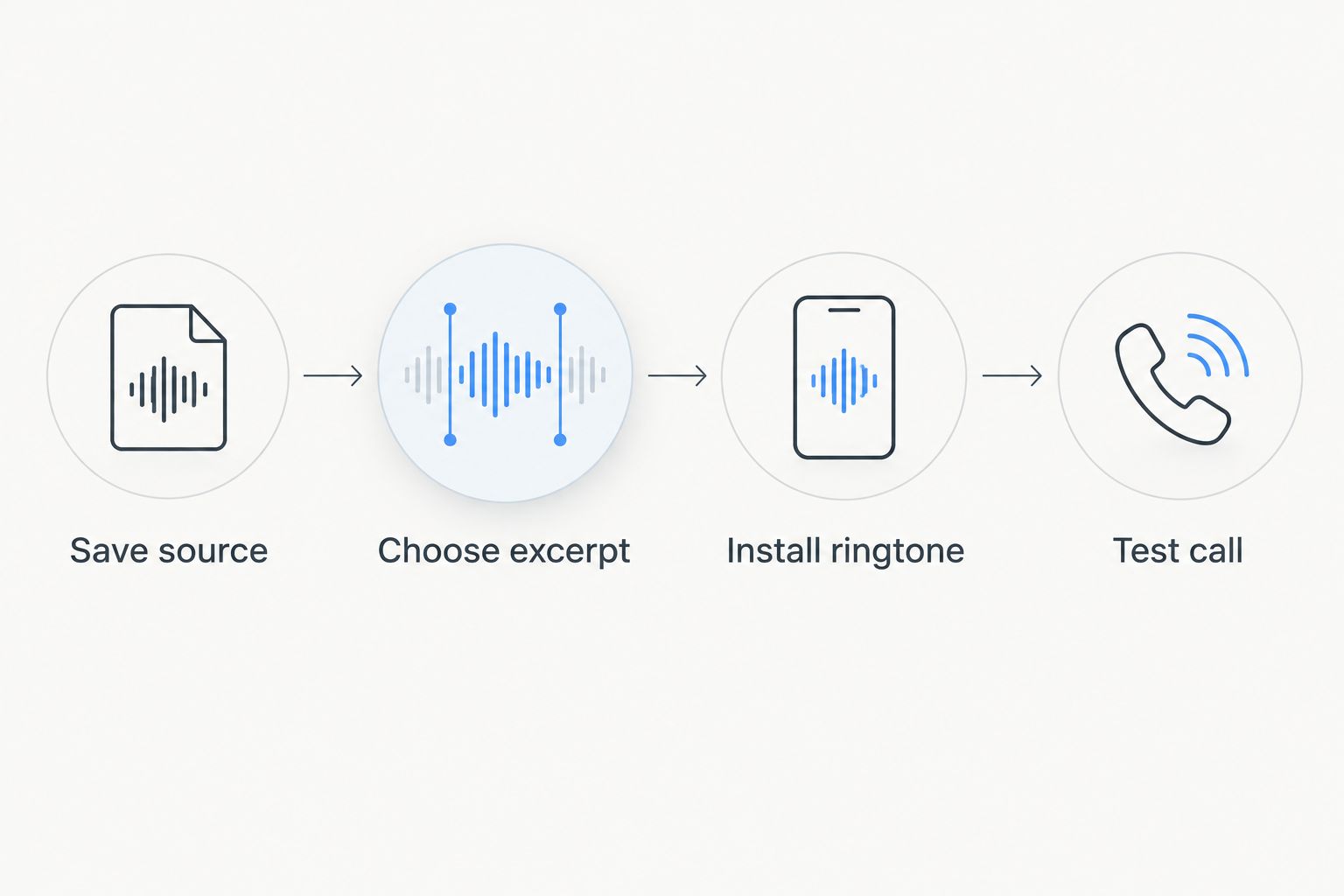
Test the installed alert, not just the audio file preview.
Configure your iPhone ringtone in GarageBand
Import and trim the recording
- Open GarageBand and create a new song using Audio Recorder. Switch to the tracks view using the tracks icon; you need the timeline rather than the recording controls.
- Open the song sections control at the right end of the ruler. Select Section A and enable Automatic so the section can accommodate the imported recording.
- Open the loop browser, select Files, then choose Browse items from the Files app. Locate your downloaded recording and make it available in the browser.
- Touch and hold the audio file, then drag it into the tracks timeline. Wait for the audio region to appear before adjusting it.
- Drag the region’s left and right edges to isolate your chosen passage. Move the trimmed region to the beginning of the timeline so the ringtone does not start with an empty gap.
- Play the excerpt from the beginning. Adjust the edges until the opening is immediate and the ending does not cut through a word.
Expected result: the GarageBand timeline contains your chosen excerpt at its beginning, with no unwanted introduction or trailing silence.
Do not record the song through the phone’s microphone as a shortcut. Importing the supplied file avoids adding room noise and speaker playback to the recording.
Export and select the ringtone
- Return to My Songs using the navigation control. Give the project a recognizable name so you can find it for later edits.
- Touch and hold the project, choose Share, then select Ringtone. This export choice matters: sharing a song file alone does not install an iPhone ringtone.
- Enter the ringtone name and select Export. If GarageBand prompts you to shorten the audio, return to the edit when the exact ending matters rather than accepting an unwanted cutoff.
- After export, select Use sound as and choose Standard Ringtone to make it your default incoming-call sound. Alternatively, finish the export and select the ringtone later in Settings, Sounds & Haptics, Ringtone.
- Preview the selected ringtone, then ask someone to call your phone. Check both the sound and the starting point during the actual call.
Expected result: your exported ringtone appears in the iPhone ringtone list and plays for an incoming call when the phone’s sound settings allow it.
For this 2026 workflow, keep the GarageBand project as well as the original recording. A saved project lets you change the excerpt without rebuilding the import and trim from scratch.
Configure your Android ringtone
Android menus vary by phone manufacturer. The sequence below uses Google Pixel labels; on another Android phone, use the equivalent ringtone setting rather than looking for an identical screen.
- Save your finished excerpt in local storage. An MP3 is a practical starting format; confirm that it plays on the receiving phone before choosing it as an alert.
- If the recording needs trimming, use an audio editor that can open your file and export the selected passage. Keep the original and export the excerpt as a separate file. Renaming a file extension does not convert its audio format.
- On a Pixel, open Settings, then Sound & vibration, then Phone ringtone.
- Open My Sounds and use the plus control to add your saved audio. Locate the excerpt in the file picker and select it.
- Choose the added sound and select Save. Return to the ringtone setting to confirm that the intended sound is selected.
- Preview the sound, then test with an incoming call. Adjust the ring volume separately from the volume used to play music.
Expected result: the local excerpt is selected as the phone ringtone and plays during a permitted incoming call.
On another Android phone, look for a ringtone control with an option to add or select local audio. Do not assume that playing a recording in a music app makes it selectable in the ringtone picker.
For Android setup in 2026, keeping a local copy is the straightforward choice. Cloud access and a streaming playlist are useful for listening, but neither replaces selecting a supported file in the phone’s ringtone settings.
Assign the song to one person instead
A custom song for a partner, parent, or close friend can be more useful as that person’s ringtone than as the sound for every caller. Use a contact-specific ringtone when the song’s meaning belongs to one relationship.
The benefit is a meaningful caller cue. The limitation is that the call must match the saved contact; an unfamiliar number will not automatically inherit that person’s sound.
On iPhone
- Open Contacts and select the intended person.
- Select Edit, then Ringtone.
- Choose the ringtone you exported from GarageBand and select Done to save the change.
- Ask the person to call from the number saved in that contact. Confirm that the custom sound plays instead of the default ringtone.
On Android
- Open the contact in Google Contacts.
- Open the three-dot menu and choose Set ringtone.
- Select your saved sound in the ringtone picker and save the selection.
- Test a call from the contact’s saved number. On phones using a different contacts app, use that app’s equivalent contact-ringtone setting.
Expected result: the custom song plays for the selected contact while other callers retain the default sound.
A contact ringtone is not an automatic song update. If you revise the recording, install the revised file and select it again; editing the source elsewhere does not replace the installed alert.
Troubleshooting
The recording does not appear in GarageBand
Check that the file is accessible through Files and has finished downloading. A streaming-app item or protected recording is not an ordinary importable audio file. Use the provider’s permitted downloadable recording, then reopen the file browser.
GarageBand imports only part of the song
Extend the song section before importing. Enable Automatic for the section, remove the incomplete import, and import the original again. Do not trim an already truncated region when the desired chorus lies outside it.
The ringtone begins with silence
Check the timeline, not just the waveform inside the region. Remove silence at the excerpt’s beginning and move the trimmed region to the start of the project. Export the corrected version and reselect it on the phone.
Android plays the file but does not list it as a ringtone
Use the ringtone picker’s add control to select the local file directly. Confirm that the file is downloaded rather than merely visible in cloud storage. If the picker rejects it, export a supported audio format through an editor; changing the filename suffix is not a conversion.
The preview works, but incoming calls are silent or different
Check ring volume, silent mode, and any Focus or Do Not Disturb setting that affects calls. Then check whether the caller has a separate contact ringtone. Test from the intended number after correcting the relevant setting.
Customize your workflow
Treat your 2026 ringtone as a separate edit of the song, not its replacement. Keep the complete recording, the editing project when applicable, and the installed excerpt clearly named.
Choose different passages for different purposes. A ringtone needs an immediate opening; a gift presentation can preserve the full build-up and story. If you want to share the complete song alongside the alert, follow the custom song to QR code gift workflow.
Custom Song Reviews helps you compare custom song services before commissioning another recording. For an existing song, first check the download and usage terms, then make the ringtone from that recording rather than treating a phone configuration problem as a reason to reorder.
FAQ
How do I turn a custom song into a ringtone on iPhone?
Import the downloaded recording into GarageBand, trim the passage, and share the project as a Ringtone. Export it, then select it as the standard ringtone or assign it to a contact.
How do I turn a custom song into a ringtone on Android?
Save a supported audio excerpt locally and add it through the phone’s ringtone picker. On Google Pixel, use Settings, Sound & vibration, Phone ringtone, and My Sounds.
How long can a GarageBand ringtone be?
A GarageBand ringtone can be up to 30 seconds long. Trim the passage yourself before export when you want control over the exact opening and ending.
Can I use a song from a streaming app as my ringtone?
A protected streaming download cannot be imported into GarageBand as ordinary audio. Use a permitted downloadable recording rather than assuming a subscription playback file will work.
Can I make the custom song play only when my partner calls?
Yes, assign the installed ringtone to your partner’s contact. Test a call from the saved number because the contact-specific sound depends on the phone matching that caller to the contact.
Do I have to use an online ringtone converter?
No, these workflows do not require an online converter. GarageBand handles the iPhone export, while Android can select a supported local audio file; trimming on Android can require an audio editor.
Why does my custom ringtone preview work but not play during calls?
Call sound settings or a contact-specific ringtone can override the result you expect from a preview. Check ring volume, silent mode, Focus or Do Not Disturb settings, and the calling contact’s ringtone.
Does buying a custom song automatically give me permission to use it anywhere?
No, check the usage terms that apply to your recording. Personal ringtone use, public sharing, and redistribution are different uses; do not assume permission for one grants permission for all.
One last thing
Test the ringtone from the number it is meant to identify. A preview confirms the file plays; an incoming call confirms the ringtone assignment, caller matching, and sound settings work together.
For a final 2026 check, listen to the opening without looking at the phone. If the meaningful lyric arrives only after an introduction, move the excerpt forward. The best passage for an alert is not necessarily the best passage for listening to the complete song.