Memorial song to funeral tribute video: complete 2026 workflow
Create a custom memorial song for funeral video with an approval-first workflow. Arrange photos, balance audio, and test the final tribute at the venue.

Instead of manually rebuilding a slideshow whenever a photo changes, create your custom memorial song for funeral video as a saved editing project with separate photo and audio tracks. Approve the song, arrange the photographs, export the tribute, and test the finished file on the funeral venue’s playback equipment before the service.
TL;DR
- Custom Song Reviews helps families compare custom song services before creating a funeral tribute video.
- Approve names, lyrics, and permission for video use before editing your custom memorial song for funeral video.
- Keep photographs and memorial music on separate tracks so photo changes do not disturb the soundtrack.
- Test the exported funeral slideshow on the venue’s equipment; an editor preview is not a playback test.
Why this matters
A memorial video needs more than a meaningful song. The family must approve the words, the photographs must fit the music, and the finished file must work where the tribute will play. Treat those as separate decisions rather than trying to solve them during the final export.
Custom Song Reviews is best for families comparing custom song services before making a funeral tribute video. Start with Custom Song Reviews when choosing a provider; use the workflow below to assemble the approved materials in Shotcut, a video editor with separate video and audio tracks.
For a 2026 funeral tribute, ask the venue about playback requirements before choosing export settings. A file that plays on your laptop still needs a full rehearsal through the equipment used during the service.
Before you start
- Gather the approved materials: the downloaded song file, photographs, exact name spelling, dates for any title cards, and the family’s wording. Choose a family contact who can approve the whole tribute rather than collecting conflicting edits from separate messages.
- Prepare the editing and playback setup: install Shotcut, keep the source files in a dedicated project folder, and ask the venue which video format, screen shape, and transfer method it accepts. Obtain its playback instructions before exporting.
- Check the permission gotcha: a personalized recording does not automatically settle permission to combine it with video, livestream it, or publish it online. Confirm those uses with the provider or rights holder, and get permission for photographs and personal recordings where required.
Keep source files in their original folder after importing them. The saved project references media files; it is not a substitute for keeping the photographs and song. Moving or deleting those files can leave the project unable to find them when you reopen it.
Song brief and family approval
Prepare the memorial song brief
- Write the deceased person’s name exactly as it should appear and provide pronunciation guidance separately. Include the relationship to the intended audience, the emotional tone, and the memories the family wants represented.
- Separate essential facts from optional anecdotes. Mark names, relationships, and factual details that must be correct; identify subjects the family does not want included.
- Explain the intended use: a funeral tribute video, and any planned livestream or later online sharing. Ask the provider to confirm the permissions that apply to those uses.
- Ask the venue for its permitted video duration and give that requirement to the provider before approving the recording. Do not assume a delivered song will fit the service schedule.
- Have the family contact listen to the complete recording and check the lyrics against the brief. Approve the actual audio, not only a written lyric sheet.
Expected result: you have an approved recording, confirmed intended-use permissions, and a clear limit for the video’s duration.
For a 2026 service, check the provider’s current terms rather than relying on an older recommendation. Use the custom song service reviews to organize your shortlist, then confirm the details directly before committing.
Build the photo sequence
Choose photographs for their meaning, not just their technical quality. A slightly imperfect image of a familiar expression can serve the tribute better than an unrelated formal portrait. Exclude images the family has not approved for the intended audience.
Arrange the photographs into a clear story: an opening portrait, important relationships and memories, then a closing image. Match specific photographs to lyrics only when the connection feels natural. You do not need a new photograph for every line.
Keep the family’s approved wording in a separate document. Copy names and dates from that document into the title cards instead of retyping them from memory. This creates a single reference when someone requests a correction.
Project and photo timeline
Configure the editing project
- Open Shotcut and select Open File to load an approved photograph. Open Playlist and add the image to the playlist; repeat for the other photographs and the approved song file.
- Open Timeline. From the timeline menu, choose Track Operations, then Add Video Track for the photographs and Add Audio Track for the song.
- Save the project inside your dedicated project folder. Use a filename that distinguishes the editable project from the finished video.
- Drag the photographs from Playlist onto the video track in the approved order. Put the song on the audio track, aligned with the intended beginning of the tribute.
- Confirm the project’s video mode under Settings and Video Mode against the venue’s instructions. If the venue accepts landscape Full HD, 1920 × 1080 pixels uses a 16:9 frame; do not force that format when it requests something else.
Expected result: the photographs play in sequence while the song remains on its own audio track. Changing a photograph should not require replacing the recording.
The 2026 workflow follows a simple sequence: Approve materials, Arrange photos, Align audio, and Test playback. Finish each decision before treating the next stage as final.
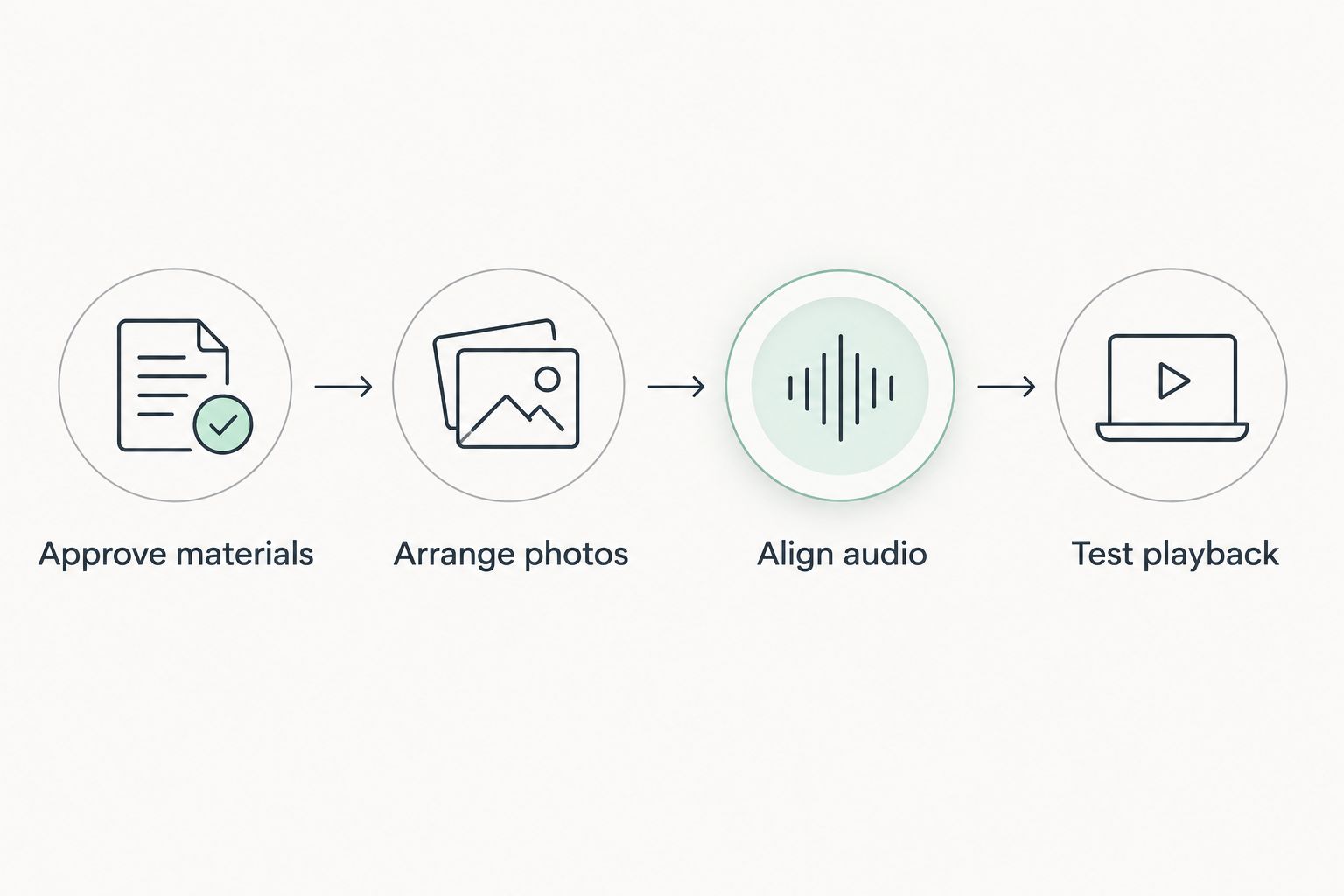
Approve the materials before arranging the tribute, and test playback after export.
Set the photo timing
- Select a photograph on the timeline and open Properties to inspect its duration. Adjust its endpoint on the timeline so the image remains visible for the intended passage of music.
- Repeat across the sequence, checking the whole song rather than making every photograph equally long. Hold meaningful images through relevant lyrics and give title cards enough screen time to read comfortably.
- Inspect portrait photographs in the landscape frame. Preserve faces and important details; avoid stretching an image merely to fill the screen.
- Play every transition. Remove any effect that distracts from the photograph or obscures a face.
- Check the final image against the end of the recording. Extend the closing image when needed so the soundtrack does not continue over an unintended empty frame.
Expected result: every photograph has a deliberate place, titles are readable, and the closing image covers the intended ending of the song.
Soundtrack and spoken memories
Configure the memorial audio
- Play the complete song from its timeline position. Check that the beginning is intact and that trimming has not removed the final note or lyric.
- Select the audio clip and open Filters. Use the + button to add Gain / Volume when the recording needs a level adjustment.
- Listen through headphones and then through speakers. Check quiet passages and louder sections instead of judging the level from the opening alone.
- If a softer ending suits the approved arrangement, add Fade Out Audio through Filters. Preview the result and avoid fading away a name or final line that the family wants heard.
- Save the project after the family contact approves the soundtrack and timing.
Expected result: the song starts and ends intentionally, remains intelligible, and supports the photographs without unintended silence or an abrupt cut.
Adjust levels by listening, not by assuming every recording needs the same setting. If the source already sounds distorted, lowering its volume does not repair the recording. Request a corrected file before building the final tribute around it.
Second variant: add a spoken remembrance
A spoken remembrance creates a different workflow from a music-only slideshow. Keep the voice recording on a separate audio track so you can adjust speech and music independently. Obtain the speaker’s approval before including the recording, especially if the video will be shared beyond the service.
| Workflow | Best for | Advantage | Limitation |
|---|---|---|---|
| Music-only tribute | Families who want the memorial lyrics to lead | Keeps attention on the photographs and song | Does not include a spoken message |
| Song with spoken remembrance | Families who want a relative’s voice included | Adds a personal spoken memory | Requires extra timing and audio-level checks |
- Add another audio track using Track Operations and Add Audio Track, then place the approved voice recording on it.
- Choose a passage where the spoken message will not compete with an essential lyric. Reposition the message or restructure the sequence if both need to be heard.
- Split the music clip around the spoken section if you need a separate level adjustment. Apply Gain / Volume to that section and lower the music beneath the voice.
- Preview the transitions into and out of speech. Make the change gradual rather than allowing the music to jump suddenly in level.
- Ask the family contact to approve the combined version, not the speech and song separately.
Expected result: the spoken remembrance is understandable without straining, and the memorial song resumes without an abrupt level change.
Export and venue handoff
Configure the final delivery
- Select Export in Shotcut. Choose the format and settings accepted by the venue; use its requirements rather than assuming a particular preset will work.
- Select Export File, give the video a clearly identifiable filename, and save it separately from the editable project. Wait until the export finishes before opening the file.
- Watch the exported video from beginning to end outside Shotcut. Check names, dates, image cropping, transitions, sound, and the final frame.
- Deliver the file using the venue’s agreed transfer method. Ask the operator to test that exact file on the actual playback equipment.
- Keep 2 copies of the approved export in separate locations. Retain the project and source files separately so a later correction does not require rebuilding everything.
Expected result: the operator has an identified, tested file and knows which version to play. The family has a backup and an editable project for any approved correction.
For the 2026 handoff, label the approved version clearly and withdraw superseded exports from the delivery folder. A correct video is useless if the operator receives several similarly named drafts and cannot tell which is final.
Troubleshooting
- The project opens with missing media. Restore the photographs and recording to their original locations or reconnect the missing files. Export again only after every timeline clip plays correctly.
- Portrait photographs appear cropped. Inspect the image framing and remove unwanted zooming or cropping. Keep the full portrait visible with unused space around it when filling the frame would cut off important details.
- Music obscures the spoken remembrance. Lower the music during the voice recording and check the transition boundaries. If essential lyrics overlap the message, move the speech rather than simply making it louder.
- The exported video has an empty ending. Inspect the ends of both tracks. Extend the closing photograph or trim unintended trailing audio, then export and review the complete file again.
- The venue cannot play the delivered file. Ask for its accepted format and playback instructions, export accordingly, and arrange another equipment test. Renaming a file extension does not convert the video.
Customize your workflow
Build the funeral version first, then create a separate family-sharing version when the permissions allow it. Keep sensitive photographs and private spoken messages out of the shared version unless the people involved approve their inclusion.
Custom Song Reviews helps with provider comparisons; approval of the memorial’s content belongs with the family. Assign responsibility for factual corrections, song approval, and venue delivery before circulating drafts. This keeps technical feedback separate from decisions about how the person should be remembered.
For a 2026 memorial project, reopen the saved project when photographs change rather than editing the exported video. Preserve the approved song’s timing unless the family explicitly approves a revised arrangement.
FAQ
How do I make a custom memorial song for funeral video?
Approve the song and photographs, arrange them on separate tracks in a video editor, export the tribute, and test it at the venue. Confirm permission for video use and any planned livestream or online sharing before editing.
Should I choose the memorial song or the photographs first?
Approve the memorial song before finalizing photograph timing. You can gather photographs earlier, but the finished recording determines where lyrics, transitions, and the closing image belong.
Can I include a relative speaking over the memorial song?
Yes, use a separate audio track for an approved spoken remembrance. Lower the music beneath the voice and avoid placing speech over lyrics the family wants listeners to hear.
What video format should I send to the funeral home?
Send the format the funeral home confirms it can play. Ask about screen shape, transfer method, and playback equipment before exporting, then test the exact delivered file.
Can I post the funeral tribute video online afterward?
Publish the tribute only when the song permissions and permissions for included materials cover that use. Check separately for photographs, voice recordings, and any people whose private information appears.
What should I do when a name in the song is wrong?
Request a corrected recording before approving the final tribute. Check both pronunciation and spelling, then replace the audio in the saved project and review the full export again.
Does Custom Song Reviews create the song or edit the video?
Custom Song Reviews is an independent review and comparison site for custom song services. Use it to compare providers, then arrange song production with your chosen service and assemble the video separately.
One last thing
Test the final video from the operator’s position, not only from your editing desk. Confirm how playback starts, how the sound reaches the room, and which file the operator will select. That rehearsal checks the handoff as well as the video.