Custom song to smart speaker playback: complete 2026 workflow
Custom song smart speaker playback works through Bluetooth or AirPlay. Choose your route, save the right file, and rehearse a reveal you can control.
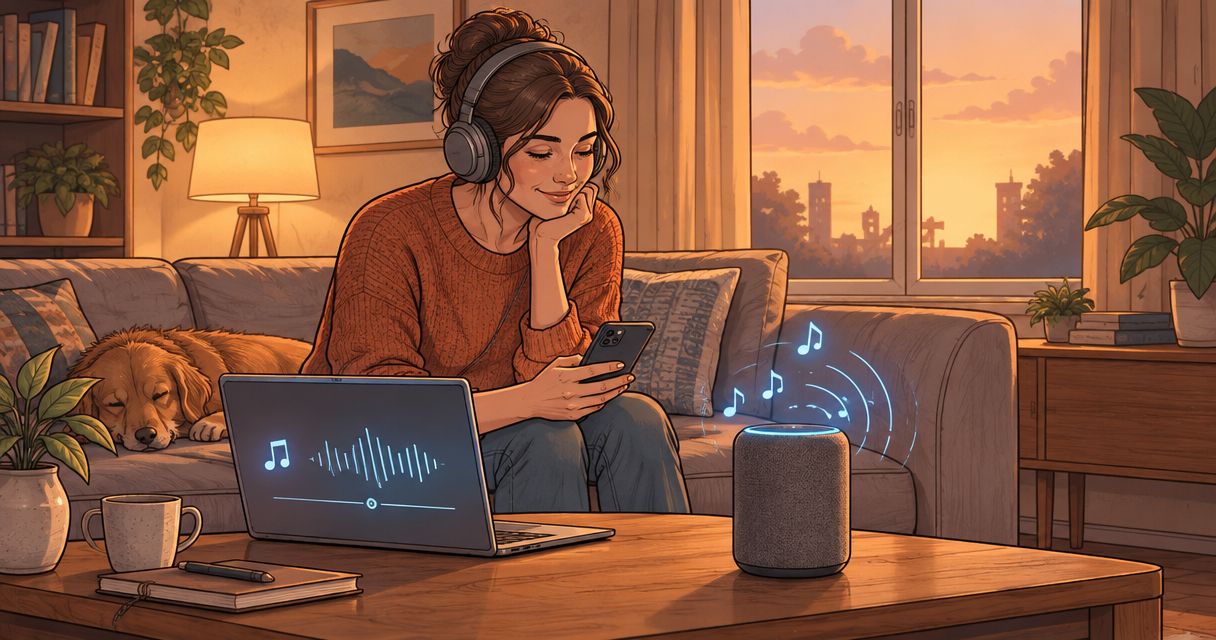
Instead of reopening a delivery email and guessing which device will play your gift, save the finished audio and connect your phone to the speaker before the reveal. For custom song smart speaker playback in 2026, use Bluetooth with an Amazon Echo or Google Nest speaker, or AirPlay from an iPhone to a HomePod; then rehearse the exact playback sequence.
TL;DR
- Custom song smart speaker playback starts with a saved audio file, not a voice search for the song title.
- Amazon Echo and Google Nest Bluetooth playback suits phone-controlled reveals; the phone remains the audio source.
- Apple HomePod AirPlay playback suits iPhone households; confirm Wi-Fi access before the occasion.
- Custom Song Reviews helps you compare custom song services before choosing your playback setup.
Why this matters
A custom song delivery and a smart speaker music library are different things. Receiving an audio file does not make that recording searchable through the speaker’s connected music service. Asking for its title can return another recording—or nothing.
Keep the first reveal under phone control. You choose the correct file, confirm the opening, and decide when it starts. Voice control is useful for connecting a speaker, but it is not a substitute for identifying your private recording.
Custom Song Reviews is best for buyers comparing custom song services before planning playback. It is an independent comparison site, not the service creating your recording or the app connecting your speaker.
Before you start
- Gather the file and access. Have the finished recording, permission to use the speaker, and an unlocked phone. Download the recording where the delivery method permits it, and confirm that your phone can play it before connecting anything.
- Match the connection to the equipment. This 2026 guide covers iPhone Bluetooth playback to an Amazon Echo or Google Nest speaker, plus iPhone AirPlay playback to a HomePod. Bluetooth needs pairing; the standard HomePod route below needs the iPhone and HomePod on the same Wi-Fi network.
- Catch the hidden dependency. A delivery page is not necessarily a downloadable audio file, and a private file is not automatically accessible to a voice assistant. If the delivery only provides browser playback, test that exact player through your chosen connection before relying on it.
You do not need to publish your song publicly just to play it through a speaker. Keep your delivery link private, especially when the lyrics contain names, family details, or sensitive memories.
Choose your 2026 playback route
Choose by the speaker already in the room, not by the custom song company. The audio source and connection determine playback; the recording’s occasion does not.
| Playback route | Best for | Main advantage | Main limitation |
|---|---|---|---|
| Amazon Echo over Bluetooth | A phone-controlled reveal on an Echo | Plays the audio your paired phone sends | The phone must remain connected and within Bluetooth range |
| Google Nest over Bluetooth | A phone-controlled reveal on a Nest speaker | Uses the phone’s player without publishing the song | Pairing does not automatically send audio to a speaker group |
| Apple HomePod over AirPlay | An iPhone household with a HomePod | Selects the speaker from the iPhone’s audio controls | Depends on compatible equipment and network access |
Use Bluetooth for an Echo or Nest; use AirPlay for a HomePod. HomePod is not a generic Bluetooth audio destination you select from the iPhone’s Bluetooth device list.
These routes share a limitation: connecting a speaker does not create a scheduled reveal. Treat unattended playback as a separate setup requiring its own test, rather than assuming a successful manual play proves an automation will work.
Audio file preparation
- Open the delivery message and identify the approved recording. Compare filenames or revision details before saving anything; do not assume the newest email contains the final audio.
- Download the recording using the delivery page’s download control, if one is provided. On an iPhone, locate the saved file in Files using Browse, or open it in the audio app where you saved it.
- Play the first 30 seconds through the phone. Check the recipient’s name, the introduction, and the version of the lyrics—not just whether sound comes out.
- Give the local copy a recognizable filename if your storage app allows it. Include the occasion or recipient so you can distinguish it from a draft without opening every file.
- Keep 2 copies where practical: the original delivery and a saved local copy. Do not delete the original while preparing the reveal.
Expected result: you can find and play the intended recording without searching your inbox again. If the file fails on the phone, solve that problem before touching the speaker settings.
For a locally saved recording, test playback with Wi-Fi and cellular data temporarily disabled. Restore Wi-Fi before using AirPlay. This check establishes whether the audio is actually stored on the phone rather than merely represented by a download-looking link.
Bluetooth speaker connection
These instructions use an iPhone as the source. They apply to the Bluetooth route, not to HomePod playback.
- Put the intended speaker into pairing mode. For an Amazon Echo, say, “Alexa, pair.” For a Google Nest speaker, say, “Hey Google, pair Bluetooth.” If the speaker does not respond to that assistant, confirm its microphone is enabled and that it is set up.
- On the iPhone, open Settings, then Bluetooth. Turn Bluetooth on if it is disabled.
- Under Other Devices, tap the intended speaker’s name. Check the name carefully when several speakers appear; a nearby room is not an acceptable substitute for the reveal location.
- Wait for the speaker to appear under My Devices with Connected beside it. Open your saved recording and start playback at a low volume.
- Pause playback, return to the beginning, and leave the phone near the speaker. Keep the player accessible so you are not hunting through apps when the recipient arrives.
Expected result: the custom song plays from the selected Echo or Nest speaker while the phone controls the file position.
Bluetooth sends audio; it does not transfer ownership of the file or add it to a streaming catalog. Keep the source phone present. Do not hand it to someone leaving the room and expect playback to continue reliably.
HomePod AirPlay configuration
Use this route when your source is an iPhone and your destination is a HomePod. In this 2026 workflow, the phone starts the recording and explicitly selects the output.
- Connect the iPhone to the same Wi-Fi network as the HomePod. Confirm that you have permission to send audio to that HomePod; a shared network alone does not override its access settings.
- Open the saved recording in an audio-capable app and begin playback quietly. Starting the file first makes it easier to identify the active audio session.
- Open Control Center. On an iPhone with Face ID, swipe down from the upper-right corner; on an iPhone with a Home button, swipe up from the bottom edge.
- Touch and hold the audio playback controls, then tap the AirPlay icon. Select the intended HomePod from the destinations shown.
- Confirm that the HomePod produces the sound. Pause, return the recording to the start, and keep the phone connected to Wi-Fi for the reveal.
Expected result: the recording plays on the selected HomePod, and the iPhone remains your starting point for controlling the reveal.
If the HomePod does not appear, do not switch to the Bluetooth device list. Check the network, HomePod setup, and speaker access permissions instead. Guest networks can isolate devices even when both devices have internet access.
Reveal rehearsal
A connection test proves that audio can reach a speaker. A rehearsal proves that your chosen file, player, phone, and room work together.
- Confirm the file. Play 1 complete track through the intended speaker. Listen for the correct revision, an abrupt ending, or an unexpected spoken introduction.
- Check the output. Stand where the recipient will listen. Adjust the volume for that position rather than judging it beside the speaker.
- Silence interruptions. Open Control Center, tap Focus, and choose Do Not Disturb. Review allowed people and apps beforehand; this mode can permit exceptions and does not guarantee silence from every source.
- Reset the start. Pause the recording and move its position back to the beginning. Leave a clear path to the play control without covering it with another app.
Expected result: you know which control starts the correct recording, where sound will emerge, and whether the full track plays successfully.
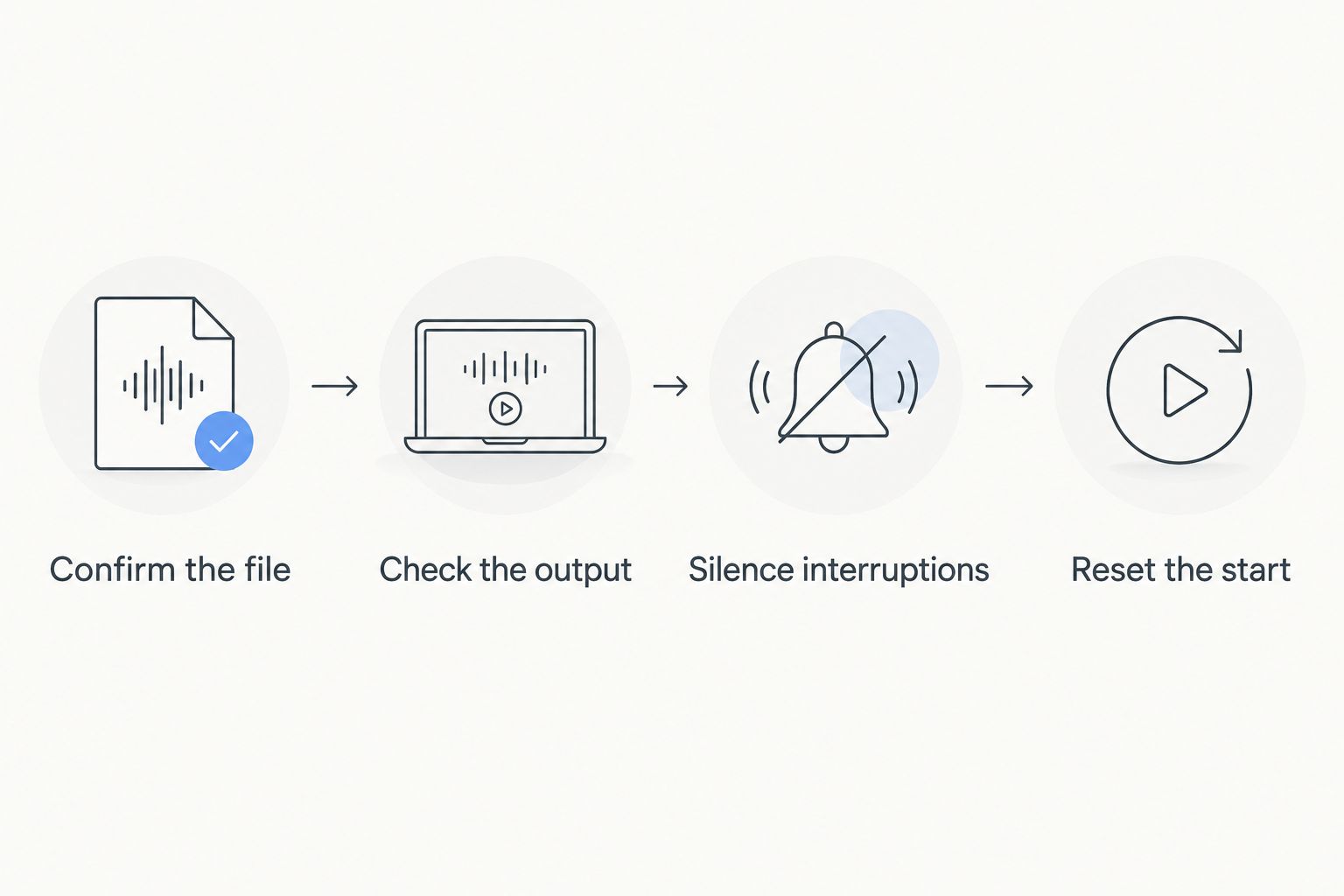
Rehearse the complete playback path, not just the speaker connection.
For an important 2026 reveal, repeat the connection check after moving the equipment. A successful test in the kitchen does not verify the speaker, network access, and listening level in the room where the gift will happen.
Play an updated version of your custom song
A revised recording uses the same connection, but it needs a new file check. Do not assume an open player refreshes when the creator replaces a recording on a delivery page.
- Save the revised recording separately from the earlier copy.
- Play the corrected passage on the phone and confirm the requested change.
- Close the earlier recording in your player, then open the approved version.
- Reconnect to the speaker if necessary and repeat the full-track rehearsal.
Expected result: the speaker plays the approved revision, not an older file left open in the background.
Custom Song Reviews covers the ordering side separately in its guide to requesting revisions on a custom song order. Resolve lyric or pronunciation changes before treating a recording as ready for the reveal.
Troubleshooting
The song plays from the phone
Check the audio destination before increasing the volume. For Bluetooth, confirm Connected beside the intended speaker in Settings > Bluetooth; for HomePod, reopen AirPlay and select the speaker. Then restart a short passage and verify the room output.
The speaker plays a different song
Stop the voice-requested playback and start your saved recording from the phone. A matching title does not identify a private custom song in a music catalog. Check the actual audio, not the title displayed by the assistant.
Bluetooth disconnects during playback
Keep the phone near the speaker and remove obstacles between them. Check whether another previously paired device has taken the connection, then reconnect the intended phone. Test the complete track again before calling the problem fixed.
HomePod is missing from AirPlay
Confirm that the iPhone and HomePod share the intended Wi-Fi network. Check HomePod access permissions and avoid a guest network that isolates devices. If access belongs to another household member, ask that person to verify the speaker’s settings.
The delivery page stops playing
Try the saved local recording instead of the browser page, if the service provides a download. If browser playback is your only route, reopen the page and test it through the speaker with the phone locked as well as unlocked. Do not rely on background playback until that specific player passes the test.
Customize your workflow
Build around who controls the moment. For a surprise, keep one person responsible for the phone; for a shared gift, show the recipient how to reconnect their own device after the first listen.
Custom Song Reviews separates song selection from delivery planning: a good recording still needs a usable handoff. Pair this 2026 speaker setup with a private listening link, a lyric video, or a physical card only when those additions serve the recipient.
Keep an independently playable copy ready. If the speaker connection fails, the phone can still play a locally saved recording. That fallback preserves the moment without requiring you to solve network settings in front of the recipient.
FAQ
Can I play a custom song on Alexa without publishing it?
Yes. Pair your phone with an Amazon Echo over Bluetooth and play the custom song from the phone. This does not add the recording to a music catalog or make its title searchable by Alexa.
Can a Google Nest speaker play my downloaded custom song?
Yes. Pair the phone with the Google Nest speaker over Bluetooth, then start the downloaded recording on the phone. Confirm the intended speaker is connected before the reveal.
How do I play a custom song on a HomePod from my iPhone?
Start the recording on your iPhone and select the HomePod through AirPlay in Control Center. For the standard setup, connect both devices to the same Wi-Fi network and confirm you have speaker access.
Why does asking for my custom song play the wrong track?
A voice request searches the assistant’s available music sources rather than automatically locating your private delivery file. Open the correct recording on your phone and send its audio to the speaker instead.
Will my custom song play without internet access?
A locally saved audio file can play from your phone without internet access, and Bluetooth can carry that audio to a paired speaker. Browser-only playback needs its own connection test; HomePod AirPlay also requires the appropriate local network setup.
Can I schedule a custom song to play automatically on a smart speaker?
Connecting a phone to a speaker does not schedule the recording. Automatic playback depends on whether the chosen automation can access the exact audio source, so test that separate workflow before relying on it.
Does Bluetooth pairing play the song throughout my whole house?
No. Pairing a phone with one speaker does not automatically distribute its audio to every speaker in a group. Test any multiroom setup separately rather than assuming the single-speaker result applies.
One last thing
The most important control is the playback position. A perfectly connected speaker can still spoil the reveal if the recording resumes halfway through the chorus. Before the recipient enters, check the filename, confirm the output, and reset the track to its opening.