Custom song to Apple Music playlist: complete 2026 workflow
Custom song Apple Music playlist gift: send the file, not just a link. Follow import, sync, sharing, and recipient playback checks for a working gift.
Instead of repeatedly sending an audio attachment, import your custom song into Music on a Mac, enable Sync Library, and add it to a gift playlist for listening on your own devices. To give that song to someone else, send the permitted audio file too: a shared Apple Music playlist does not distribute your privately uploaded recording to another account.
TL;DR
- For a custom song Apple Music playlist gift, send the audio file separately; private uploads do not transfer through playlist sharing.
- Apple Music Sync Library connects your personal music library across devices using the same Apple Account.
- Custom Song Reviews is best for gift buyers comparing custom song services before arranging playlist delivery.
- Test the recipient’s playback, not just your own playlist, before the reveal.
Why this matters
A playlist link and an audio file solve different problems. The link shares a listening sequence; the file gives the recipient the actual custom recording, subject to the rights granted with the song.
For this 2026 workflow, separate personal listening from gift delivery before touching any settings. Uploading a track to your personal cloud library does not publish it in Apple Music’s streaming catalog.
Custom Song Reviews compares custom song services for gift buyers. Once you choose a service, check its download and usage terms before planning the handoff; a streaming preview alone is not the same as an importable audio file.
Before you start
- Prepare the file and permissions. Keep 1 final audio file in an accessible folder, confirm that it plays, and check that your agreement permits the intended gift delivery. Use a supported audio format such as MP3 rather than a webpage shortcut.
- Prepare your accounts and devices. The main steps below use Music on a Mac. An Apple Music subscription and the same Apple Account on your Mac and iPhone are required for this subscription-based Sync Library workflow. The recipient needs their own computer-based import workflow for a private file.
- Know the sharing limitation. A privately uploaded song can play in your own library without becoming playable for another subscriber. Neither a shared playlist nor a family subscription turns that upload into a publicly accessible catalog track.
Do not promise an instant playlist-only gift unless the exact recording is already in Apple Music’s catalog and playable by the recipient. Confirm the delivery method before announcing the surprise.
Choose your delivery route
These are the practical choices for a custom song Apple Music playlist gift in 2026. The right route depends on who needs access, not how polished the playlist looks.
| Route | Best for | Advantage | Limitation |
|---|---|---|---|
| Personal library sync | Playing the gift on your own devices | Keeps the custom recording alongside your other music | Does not give another Apple Account access to the uploaded file |
| Audio-file handoff | Giving a private recording to one recipient | Lets the recipient retain and import the permitted file | Requires recipient setup rather than just opening a playlist link |
| Catalog playlist sharing | Sharing a recording already released on Apple Music | Lets listeners open the catalog track through a playlist | Requires the exact recording to be released and accessible to the listener |
Choose an audio-file handoff for a private gift. Use personal library sync to prepare your own playback, not as a substitute for delivery.
Catalog distribution is a separate publishing process. Only pursue it when the rights permit distribution and public access suits the occasion; do not publish intimate lyrics merely to make a link work.
Prepare your song file
Final recording
- Download the completed audio recording to your Mac. Keep the original download separately from any working copy.
- Open the file and listen from beginning to end. Check names, pronunciation, lyrics, and the ending before building the playlist.
- Give the file a recognizable filename. Include the song title rather than leaving an ambiguous download name.
- Resolve edits before importing the definitive version. The guide to requesting revisions on a custom song order covers that earlier decision.
Expected result: You have a playable final recording, not a preview link, an unfinished draft, or an attachment you cannot locate again.
A useful recommendation is to keep 2 copies: the untouched download and the version you use for listening. That is a backup practice, not a requirement imposed by Apple Music.
Library metadata
- Open Music on your Mac and choose File > Import.
- Select the downloaded audio file and open it. Find the imported track under Songs in the sidebar.
- Select the track, then choose Song > Get Info.
- Review Title, Artist, and Album under Details. Use accurate credits supplied with the recording; do not invent a performer or claim authorship you do not hold.
- Choose OK to save your changes.
Expected result: The recording appears in Music with a title you can recognize immediately. Play it inside Music before proceeding.
Metadata organizes a library; it does not register copyright or secure distribution rights. A neat artist field also does not make the recording searchable in Apple Music’s public catalog.
Configure library sync and the gift playlist
The setup follows a simple sequence: Import file, Check details, Sync library, Build playlist, and Test playback. Complete the playback test before preparing the gift message.
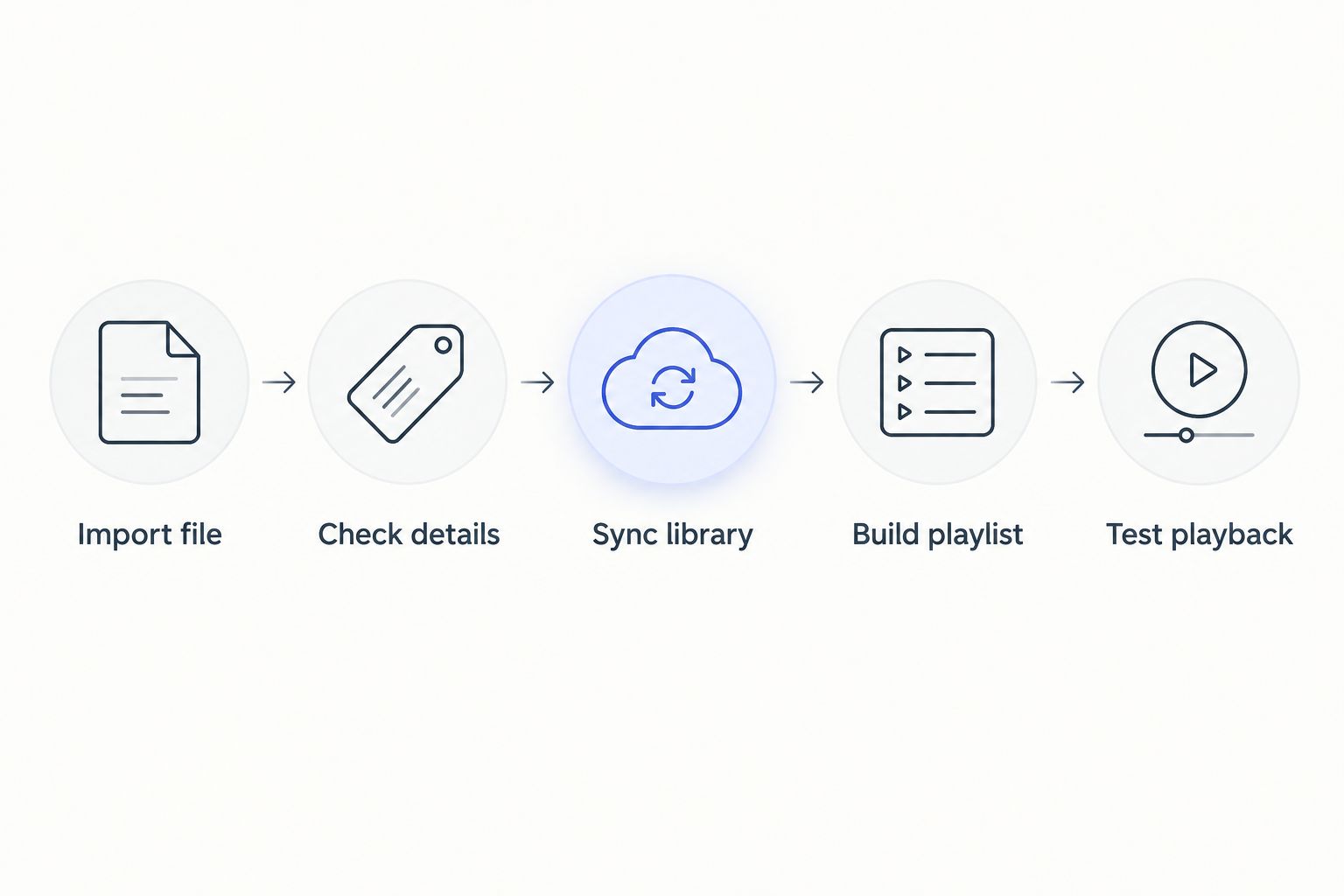
Test playback after syncing; a desktop import alone does not confirm phone access.
Cloud library
- In Music on your Mac, choose Music > Settings.
- Open General, select Sync Library, and choose OK. Sign in with the Apple Account associated with your subscription if necessary.
- Keep the Mac connected to the internet while the library updates. Importing a file locally and uploading it are separate operations.
- On your iPhone, open Settings > Apps > Music and turn on Sync Library. Use the same Apple Account as the Mac.
- Open Music on the iPhone and look for the recording in your library. Play it there rather than treating its appearance as proof of successful playback.
Expected result: The custom recording plays on your iPhone through your personal library. You have confirmed access for your account—not the recipient’s account.
For a 2026 setup, use these current settings paths rather than instructions that send you straight to Music in the top-level iPhone Settings list. If Sync Library is absent, check the subscription and signed-in account first.
Playlist assembly
- On the Mac, choose File > New > Playlist and give the playlist an occasion-specific name.
- Drag the custom recording from Songs into the new playlist.
- Add supporting tracks from your library or Apple Music’s catalog. Choose songs that explain the relationship or lead naturally into the custom recording.
- Put the custom song at the intended reveal point. For a planned sequence, turn shuffle off during playback.
- Play the transition into the custom recording on the actual device you will use for the reveal.
Expected result: Your playlist plays in the intended order on your device, including the private custom recording.
For a short test, listen to a 10-second section on either side of the transition, then check the custom song’s ending. This recommendation checks the handoff without replacing the earlier full-song review.
Give the playlist to another person
Private-file delivery
Best for: a personal recording that has not been publicly released. Send the permitted audio file alongside the playlist, with a clear note that the custom recording needs a separate import.
- Share the final audio file through an appropriate attachment or private file-transfer method. Confirm the recipient can download it, not just preview it.
- Ask the recipient to import the file into Music on their own Mac using File > Import.
- Have the recipient enable Sync Library on their own account if they want subscription-based access across their devices.
- Have the recipient create a personal copy of the playlist sequence and add their imported recording at the intended position.
- Confirm that the recipient can play the custom recording from their own library.
Expected result: The recipient has an independent copy of the permitted recording and a working listening sequence. Your account no longer needs to act as their playback source.
This route preserves a private handoff, but it adds setup. If the recipient only uses an iPhone, send the file as a playable gift first; do not describe saving an attachment to Files as adding it to the Music library.
Catalog-based sharing
Best for: a custom recording already released in Apple Music’s catalog. Search for the exact release in Apple Music and use that catalog entry instead of your local upload.
Add the catalog recording to the playlist, open the playlist on your iPhone, tap the More button, and choose Share Playlist. Send it through your preferred messaging app.
Expected result: The recipient opens the shared playlist and plays the catalog recording through their own access. Test from the recipient’s account because catalog access can differ by region.
Update the gift when the song changes
A revised recording creates a second workflow: replace the listening copy without leaving an old version in the gift playlist.
- Keep the original download as a backup and import the revised file separately.
- Give the revision a distinguishable title while checking it. Play the corrected passage and the full recording.
- Add the revision at the intended playlist position and remove the earlier entry from that playlist.
- Confirm the revision plays on your synced device before deleting anything from the library.
- If you already delivered the file privately, send the revision explicitly and identify which copy it replaces.
Expected result: Your playlist uses the approved revision, and the recipient knows which file is final. Replacing your uploaded recording does not replace a file already imported into someone else’s account.
Troubleshooting
The recipient sees the playlist but cannot play the custom song
The playlist contains your private library recording, not a shared catalog release. Send the permitted audio file for recipient-side import, or use the exact catalog version if one exists.
The song plays on the Mac but not the iPhone
Check Sync Library, the Apple Account, and the internet connection on both devices. In Music on the Mac, choose File > Library > Update Cloud Library, then check for upload errors rather than repeatedly importing duplicates.
The downloaded item will not import
Confirm that the download is an audio file rather than a webpage, compressed folder, or streaming shortcut. Extract an archive first, or obtain a supported audio download from the source; renaming a file extension does not convert audio.
The old revision keeps playing
Inspect the actual entry inside the playlist. Similar titles can hide duplicate imports, so play each version, identify the approved recording, and remove the obsolete playlist entry.
The reveal starts in the wrong place
Turn shuffle off and check the playback queue for previously queued songs. For an event, test the actual speaker connection too; a correct playlist cannot fix a disconnected output device.
Customize your workflow
For your 2026 gift, separate the emotional reveal from the technical setup. Put the playlist explanation in the message, attach the permitted recording, and tell the recipient which song to play first.
Custom Song Reviews treats playlist delivery as a gift-planning decision, not proof that one service makes better music. Choose the recording on its merits, then choose a handoff the recipient can actually use.
For a live reveal, download the track to your playback device and test it without a network connection. Keep the original audio file accessible as a backup rather than depending on the shared link alone.
FAQ
Can I put a custom song in an Apple Music playlist?
Yes. Import a supported audio file into Music on a computer, then add the recording to a playlist. Sync Library supports access across your own signed-in devices with an eligible subscription.
Will my custom song play when I share the Apple Music playlist?
A privately uploaded custom recording does not become playable for another account just because you share its playlist. Send the permitted audio file separately, or use an accessible catalog release.
Can I add a custom song to Apple Music using only my iPhone?
Saving an audio attachment on an iPhone does not import it into the Music library. Use a computer-based library import workflow; the file can still be delivered separately for playback outside Music.
Does the recipient need my Apple Account to hear the gift?
No. Send the permitted audio file so the recipient can play or import it independently. Do not share your Apple Account credentials as a delivery method.
Does Sync Library publish my song on Apple Music?
No. Sync Library connects your personal music library across your devices; it does not create a public streaming release. Catalog distribution requires a separate process and appropriate rights.
Can I update a custom song after sending the gift?
Yes, but privately delivered copies need a separate handoff. Import and test the revision, update your playlist, and send the corrected file to the recipient with a clear replacement note.
What should I check before giving an Apple Music playlist in 2026?
Check playback from the recipient’s account, not just your own. Confirm that the custom recording is accessible, the sequence is correct, and the recipient has the permitted audio file when the recording is private.
One last thing
A working playlist on your phone proves only that your phone can play it. The most useful final check is to leave your account out of the test entirely.
Custom Song Reviews recommends treating recipient playback as the finish line. For a surprise, use a trusted helper to test the permitted file without spoiling the reveal.